Resolve Git sync conflicts
Understand how Doxbrix merges changes from the editor and your repository, and keep the editor or Git version when the same content changed in both places.
When a teammate edits a page in the Doxbrix editor while someone else changes the same Markdown file in Git, Git sync has to decide which change wins. This guide explains how Doxbrix detects these conflicts, what it does automatically, and how you review each conflict and keep the editor or Git version from project settings, the dxb CLI, or the REST API.
How conflicts happen
Git sync keeps a copy of each page as it looked at the last successful sync. This copy is the merge base. When new commits arrive, Doxbrix runs a three-way merge for every changed page. A three-way merge compares three versions of the same file:
| Version | What it contains |
|---|---|
| Merge base | The page content from the last successful sync |
| Editor version | The page as it is now in the Doxbrix editor |
| Git version | The file as it is now on the tracked branch |
The merge works line by line. If only one side changed, or both sides changed different lines, Doxbrix combines the changes automatically and no conflict occurs. A conflict occurs only when the editor and Git both changed the same region of a page in different ways.
When a conflict occurs, Doxbrix does three things:
- It applies the project's conflict policy immediately, so the page never stays half-merged. Git wins keeps the Git version. Editor wins keeps the editor version.
- It saves both versions so you can review the decision later and switch to the other side.
- It marks the sync run as Partial in the run history and records a warning such as
Conflict on docs/guides/install.md, applied git_wins.
The policy is a safe default, not a final decision. Until you resolve the conflict, it stays listed as unresolved.
Before you begin
- The project is connected to a GitHub or GitLab repository. To set up a connection, see Sync a project with a Git repository.
- Git sync is included in your plan. If it is not, connection requests fail with the code
git_sync_unavailable. Compare plans in Plans and limits reference. - To resolve a conflict, you need editor access to the project. With a personal access token, the token needs the
docs:writescope. To choose the conflict policy when you connect a repository, you need admin access to the project.
Resolve a conflict in project settings
On the dashboard, select the gear icon on the project card to open project settings. In the settings navigation, under ADMINISTRATION, select Git Sync.
If the project is not yet connected, the section shows the GitHub and GitLab provider cards. If it is connected, the section shows the repository, its status, and the Sync now, Pause sync, and Disconnect actions.
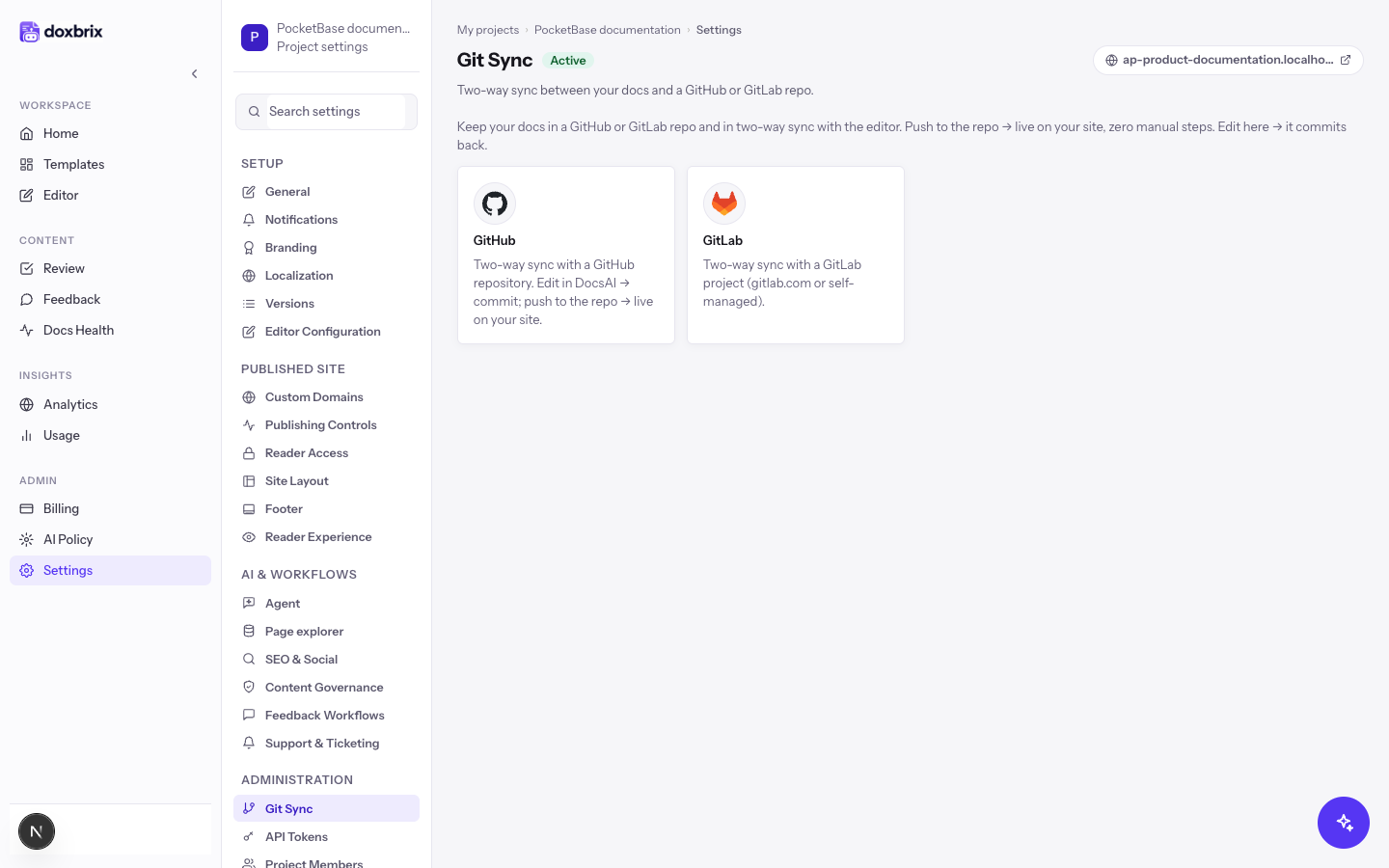
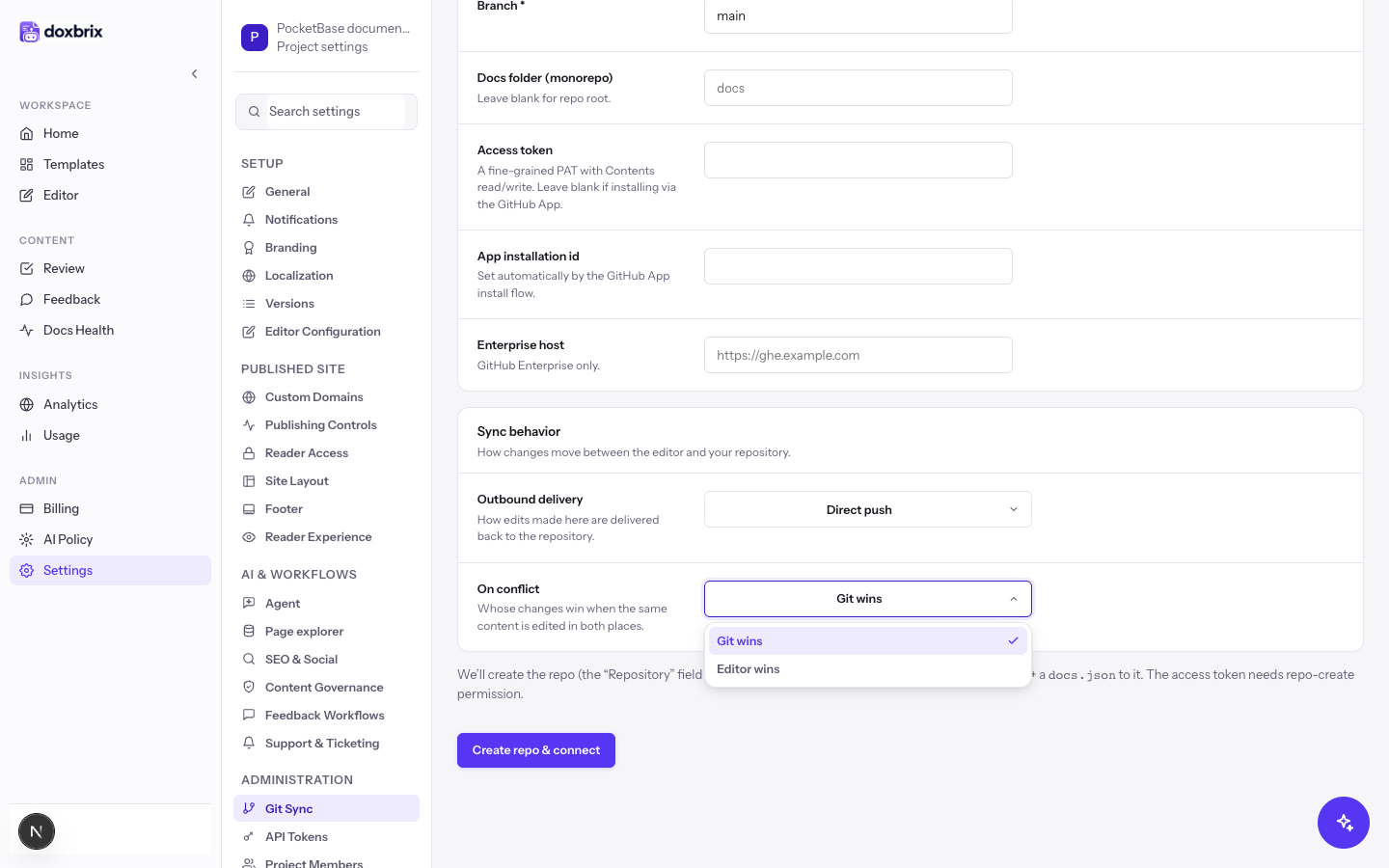
The conflict policy decides which version Doxbrix applies automatically. You choose it while you connect a repository: in the Sync behavior panel, open the On conflict menu and select Git wins or Editor wins. Git wins is the default.
After the repository is connected, the Sync policy card shows the current Conflict policy next to the Outbound sync mode. With the CLI, you set the policy at connection time with dxb git connect --conflict-policy git_wins or --conflict-policy editor_wins.
Below the Sync now button, look for the conflicts panel. Its heading shows the count, for example ⚠ 2 unresolved conflict(s). If there are no unresolved conflicts, the panel does not appear.
Each entry shows the page title and the path of the file in the repository, such as docs/guides/install.md.
Each conflict shows two columns side by side:
- Editor version: the page body as it was in Doxbrix when the conflict happened.
- Git version: the file body from the repository.
The panel previews the first 1,200 characters of each version. An empty side shows (empty), which means the page or file body was deleted on that side. For long pages, open the file in your repository to compare the complete text.
Under the version you want, select Keep editor or Keep Git.
Doxbrix writes the chosen Markdown to the page, clears the conflict, and makes the chosen text the new merge base. The entry disappears from the panel and the count decreases.
The chosen version is pushed back to the repository on the next sync, using the project's outbound mode: a direct push to the branch or a pull request. You don't need to edit the file again in Git.
Resolve conflicts from the CLI or the API
Use the CLI or the API when you automate Git sync or work without the browser. Both paths follow the same rules as the settings page.
List unresolved conflicts for the linked project, or pass --project with a project slug or ID:
dxb git conflicts list --project pocketbase-docsThe table shows the PAGE, PATH, and a shortened PAGE ID. To see full page IDs, add --json:
dxb git conflicts list --project pocketbase-docs --jsonResolve one conflict by keeping the editor or Git version. --keep is required and accepts editor or git:
dxb git conflicts resolve 3f6c2a9e-8d41-4b7a-9c55-1e2f3a4b5c6d --keep git --project pocketbase-docsThe command prints Resolved (kept git). When nothing is left, dxb git conflicts list prints No conflicts.
Verify the result
- In Git Sync, the conflicts panel no longer lists the page. When every conflict is resolved, the panel disappears.
- Open the page in the editor and confirm that it shows the version you kept.
- After the next sync, check the repository: the file on the tracked branch, or the pull request Doxbrix opened, contains the same text.