
Monitor quality with Docs Health
Read the health score, triage prioritized issues, run health checks and AI content scans, and fix broken links.
Docs Health gives you one board that measures the quality of your documentation and lists what to fix first. This guide shows you how to read the health score, scope the board to one project, filter and triage issues, run checks on demand, and fix problems such as broken links and stale pages.
Use Docs Health as a regular review: once a week for a docs lead, or before a release for a team that ships documentation with the product.
Before you begin
- Sign in to Doxbrix and be a member of at least one project.
- Your project role controls what you can do on the board:
| Action | Owner | Admin | Editor | Viewer |
|---|---|---|---|---|
| View the board and open issues | Yes | Yes | Yes | Yes |
| Assign to me and Snooze 7 days | Yes | Yes | Yes | No |
| Run health check, Run AI content scan, Mark resolved, Dismiss | Yes | Yes | No | No |
- An AI content scan uses AI credits (one per page) and runs only when the workspace AI policy allows scans. See Govern AI with the AI policy and Track AI usage.
What Docs Health checks
Docs Health groups issues into these kinds:
| Issue kind | What it means |
|---|---|
| Stale pages | A page has not been updated within the project's stale-content threshold. |
| Broken links | A link on a page returns an error or no response. A link that redirects is reported at low severity. |
| Low-quality pages | A page's AI quality score is below 70. |
| Failed searches | Readers searched the site and found no results. |
| Negative feedback | Readers rated a page as unhelpful. |
| Missing articles | Readers requested content that does not exist yet. |
| Assistant misses | The Ask AI assistant could not answer a reader's question from the docs. |
Each issue has a severity (Critical, High, Medium, or Low) and an impact that grows with the number of readers affected. The board orders issues by priority, so the issues at the top affect the most readers.
The Overall health score runs from 0 to 100. A project with no open issues scores 100. Open issues lower the score according to their severity and impact, relative to the size of the project. The score is labeled Good at 90 or above, Fair from 70 to 89, and Needs work below 70.
Steps
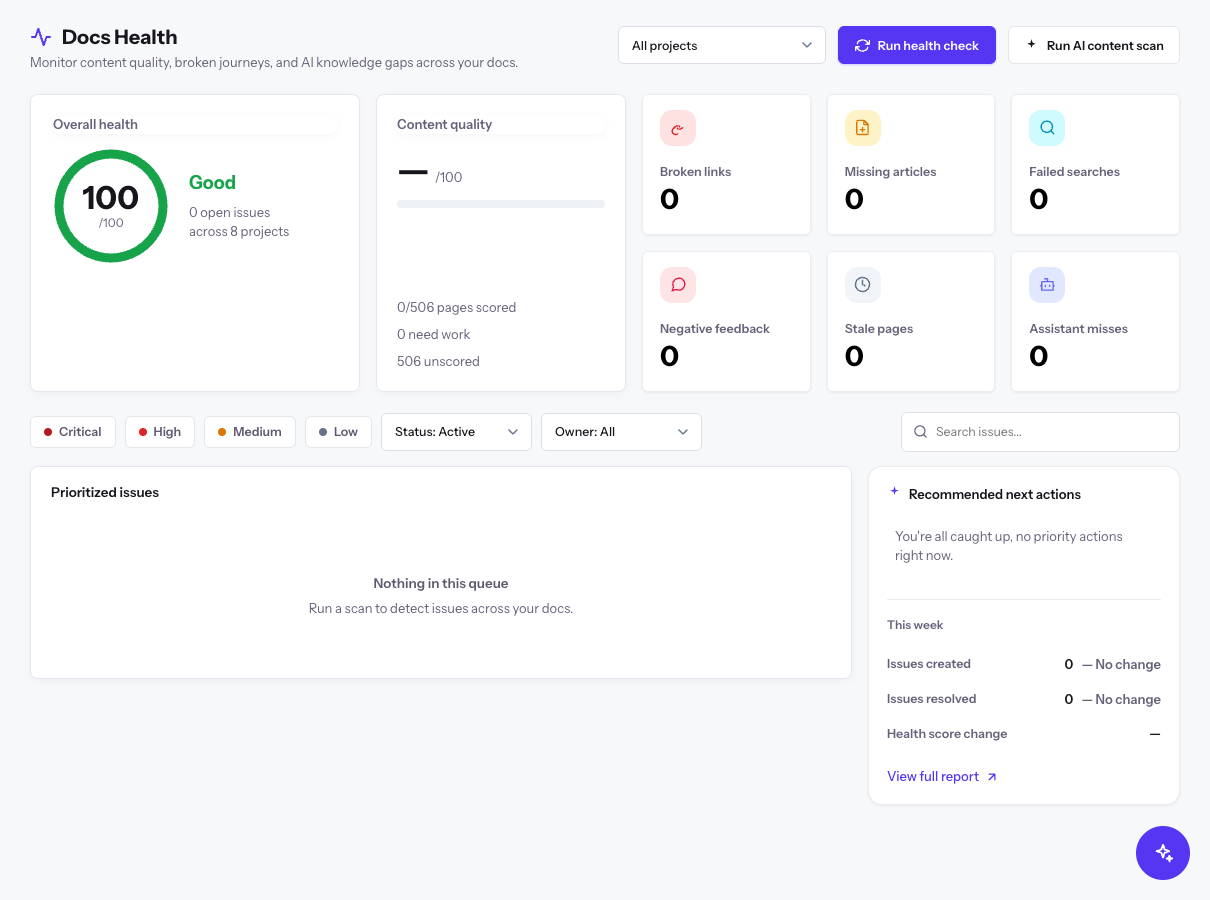
In the app sidebar, select Docs Health, or go to /health. The board opens for All projects.
At the top you see Overall health with the score, the number of open issues, the change since the last scan, and a trend line. Content quality shows the average AI quality score and how many pages are scored, need work, or are unscored. One tile per issue kind shows its count and change since the last scan.
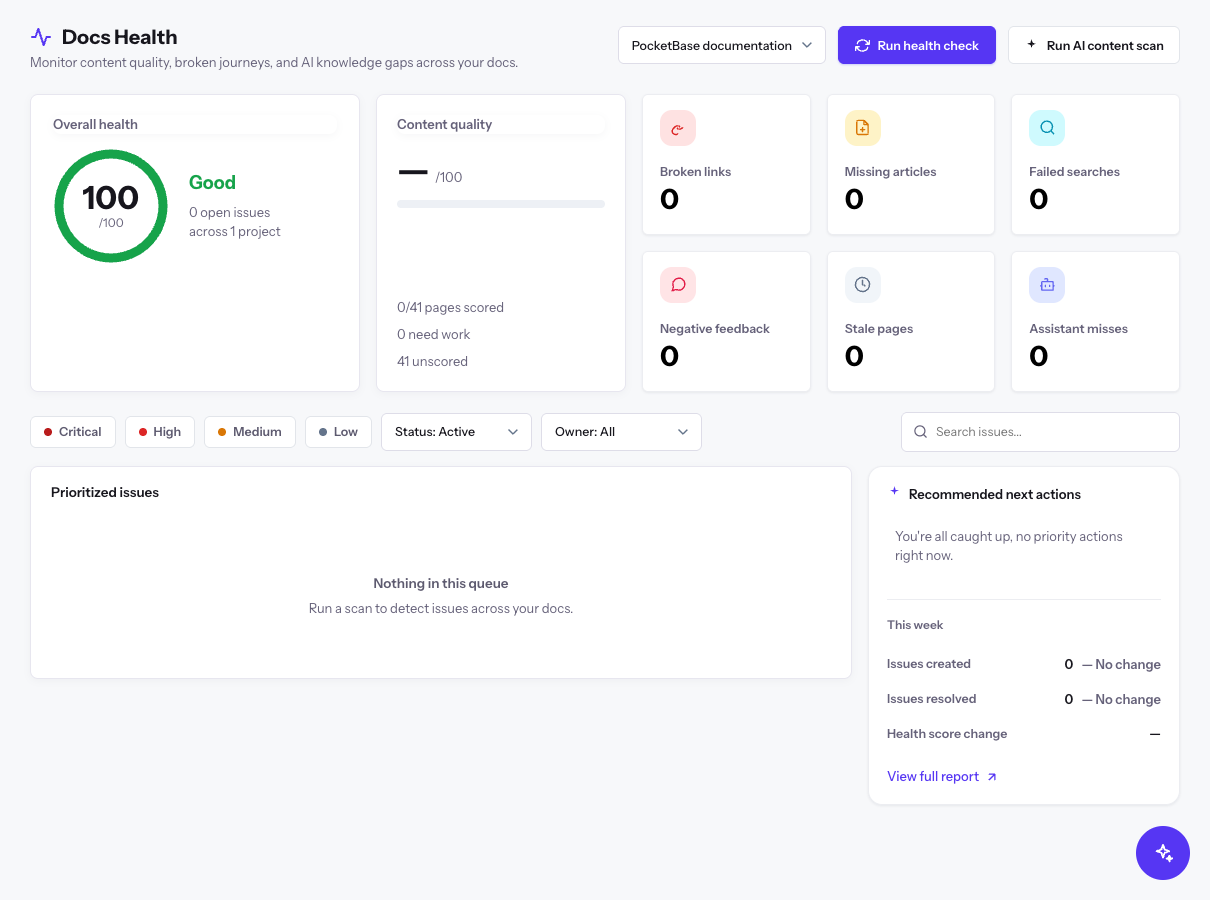
Open the project selector next to the page title. It lists All projects followed by each project you belong to. Choose a project, for example PocketBase documentation.
The score, tiles, and issue list now cover only that project, and the header shows when it was last scanned.
Narrow the Prioritized issues list with any combination of filters:
- Select one or more issue tiles, such as Broken links, to show only those kinds.
- Select a severity: Critical, High, Medium, or Low.
- Open the status filter and choose Active, Open, Snoozed, Resolved, or Dismissed. Active is the default.
- Open the owner filter and choose Owner: All, Owner: Unassigned, or Owner: Me.
- Type in Search issues... and press Enter.
Select Clear to remove all filters.
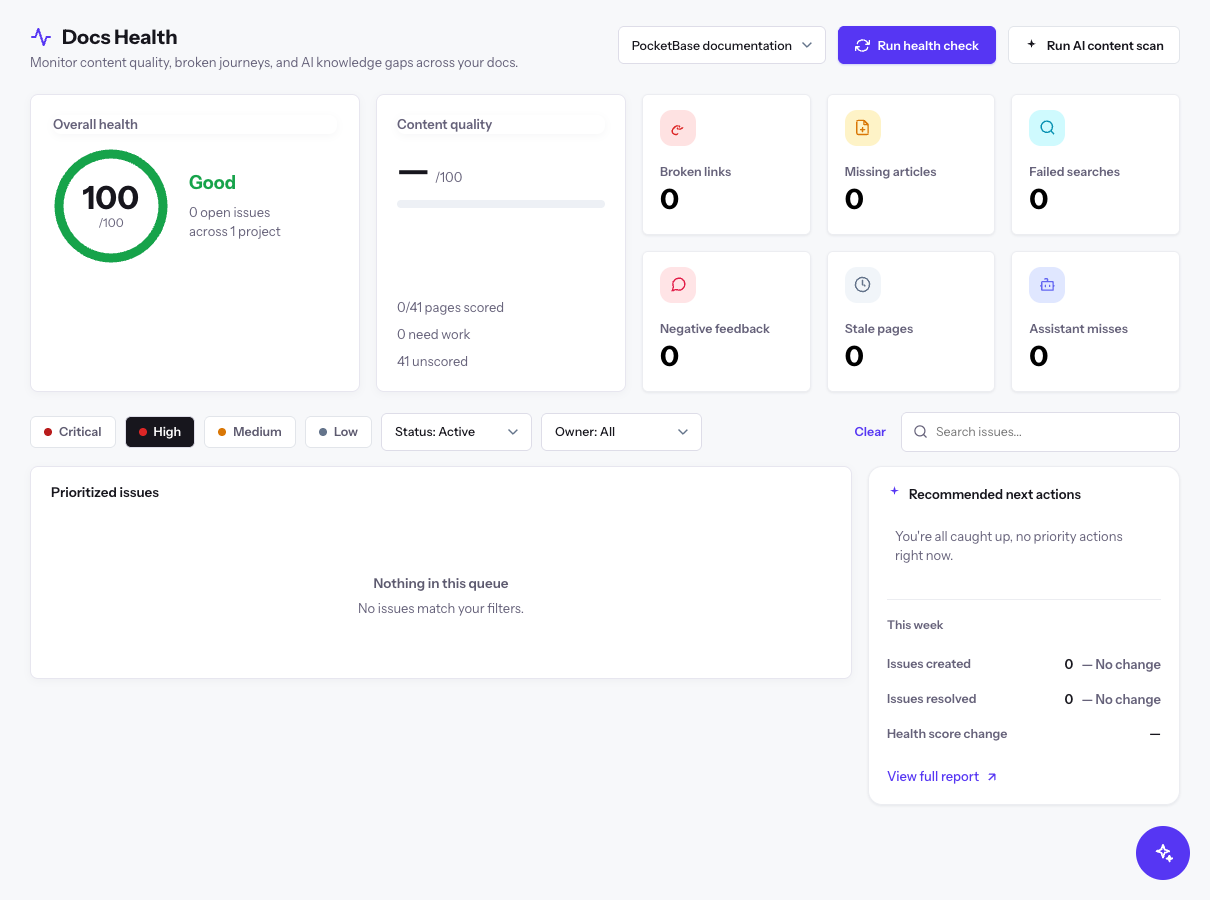
If nothing matches, the list reads Nothing in this queue and No issues match your filters.
On an issue row, open More actions and choose Assign to me, or Snooze 7 days to hide it until later. Choose View details to open the issue with its full context.
To act on several issues at once, select their checkboxes (or Select page) and use the bar that appears: Assign to me, Snooze 7d, Resolve, or Dismiss.
Select the primary action on the issue row. The action depends on the issue kind:
| Issue kind | Action | Result |
|---|---|---|
| Broken links | Fix link | Opens the page in the editor so that you can correct or remove the link. |
| Stale pages | Review page | Opens the page so that you can update and republish it. |
| Low-quality pages, Negative feedback | Open page | Opens the page for editing. |
| Failed searches, Assistant misses | Create article | Starts an article request for the missing topic. |
| Missing articles | Create page | Starts a new page for the requested content. |
For a connected project, the action is Edit in repository, View live page, or Review in Docs Gaps. After you fix and publish the change, return to the board and choose Mark resolved from More actions.
Owners and admins can select Run health check to scan the projects in scope now, instead of waiting for the daily scan. The button reads Checking… while it runs and a progress bar shows its state. Broken links issues come from the most recent link check, which runs separately each day.
To score every page with an AI quality review, select Run AI content scan. The Run AI content scan? dialog shows how many pages and projects the scan covers and an estimate of the tokens it uses.
Select Start scan to begin, or Cancel. You can stop a running scan from the progress bar; pages already scored keep their scores.
How the broken-link check works
The link checker tests the links on every published page, several at a time. Site-relative links are resolved against the page's live address, so internal links are checked too. It does not follow redirects, so a redirecting link is reported as a low-severity issue that you can update to the final address. A link that returns an HTTP error (status 400 or higher) or no response within about six seconds is reported as a high-severity broken link.
Verify
- After you fix and resolve an issue, it no longer appears under the Active status. Choose Resolved in the status filter to see it.
- After the next health check, the tile count for that issue kind drops and the change shows vs last scan.
- Overall health rises as open issues close. With no open issues, the list reads Your docs are healthy: no open issues.
- The This week panel shows Issues created, Issues resolved, and Health score change.