
Score and improve a page with AI
Read a page's quality score and area scores in Document insights, refine them with an AI scan, and run Improve with AI for the whole page or one area.
Every page in the editor has a quality score that shows how ready it is for readers. This guide explains how to read the score and its five area scores, refine them with an AI scan, and use Improve with AI to rewrite a draft for all areas or for one area at a time.
Use this guide before you submit a page for review, after you import content, or when Docs Health flags a page with a low score.
Before you begin
- Open a project in the editor with a role that can edit pages. See Roles and permissions.
- Improve with AI works only on draft pages. On a published page, select Edit page first to create an editable draft. See Publish and edit published pages.
- The page needs some content. Improve with AI cannot rewrite an empty page.
- AI scans and rewrites use your workspace AI allowance. An AI scan costs 1 credit per page, and a rewrite uses AI tokens. See Track AI usage.
How the quality score works
The QUALITY badge at the top of the page shows an overall score from 0 to 100 and a status:
| Score | Status |
|---|---|
| 88–100 | Excellent |
| 75–87 | Good |
| 60–74 | Fair |
| 0–59 | Needs work |
Doxbrix calculates the score automatically from five areas: Readability, Structure, SEO, Accessibility and Completeness. The automatic score updates as you edit and does not use AI. When you run an AI scan, the scores are refined with editorial judgement, and the latest scan is saved with the page so it also appears in Docs Health.
Read and improve a page
Open a page from the Content tree. The QUALITY badge sits above the page content, next to Improve with AI. The right pane shows Document insights with the overall score and a score for each area.
On a published page, the page is locked and Improve with AI is unavailable. Hover over it to see Open a draft page to improve with AI.
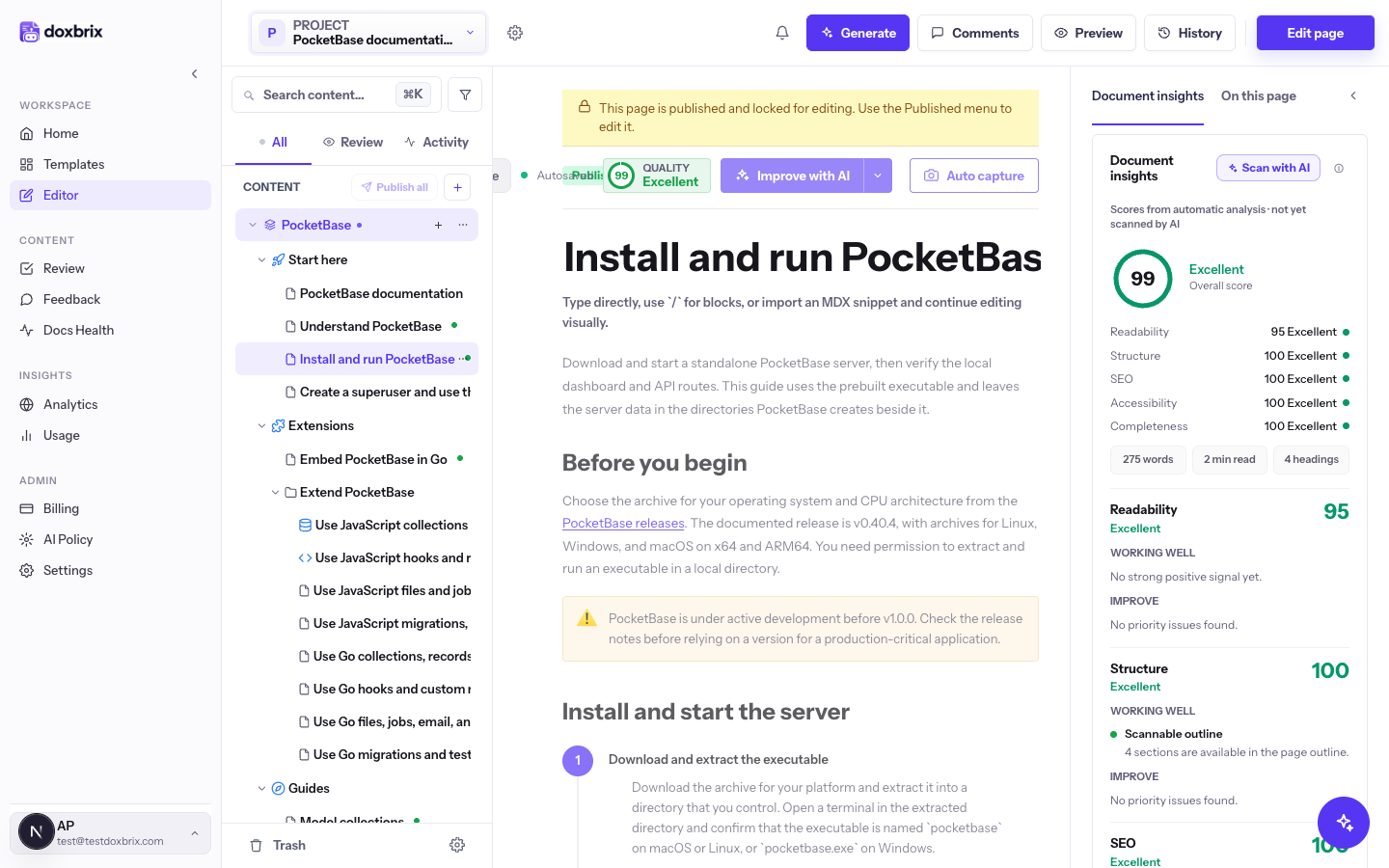
Open a draft, such as one listed under Drafts & needs attention on the dashboard. On a draft, Improve with AI is enabled.
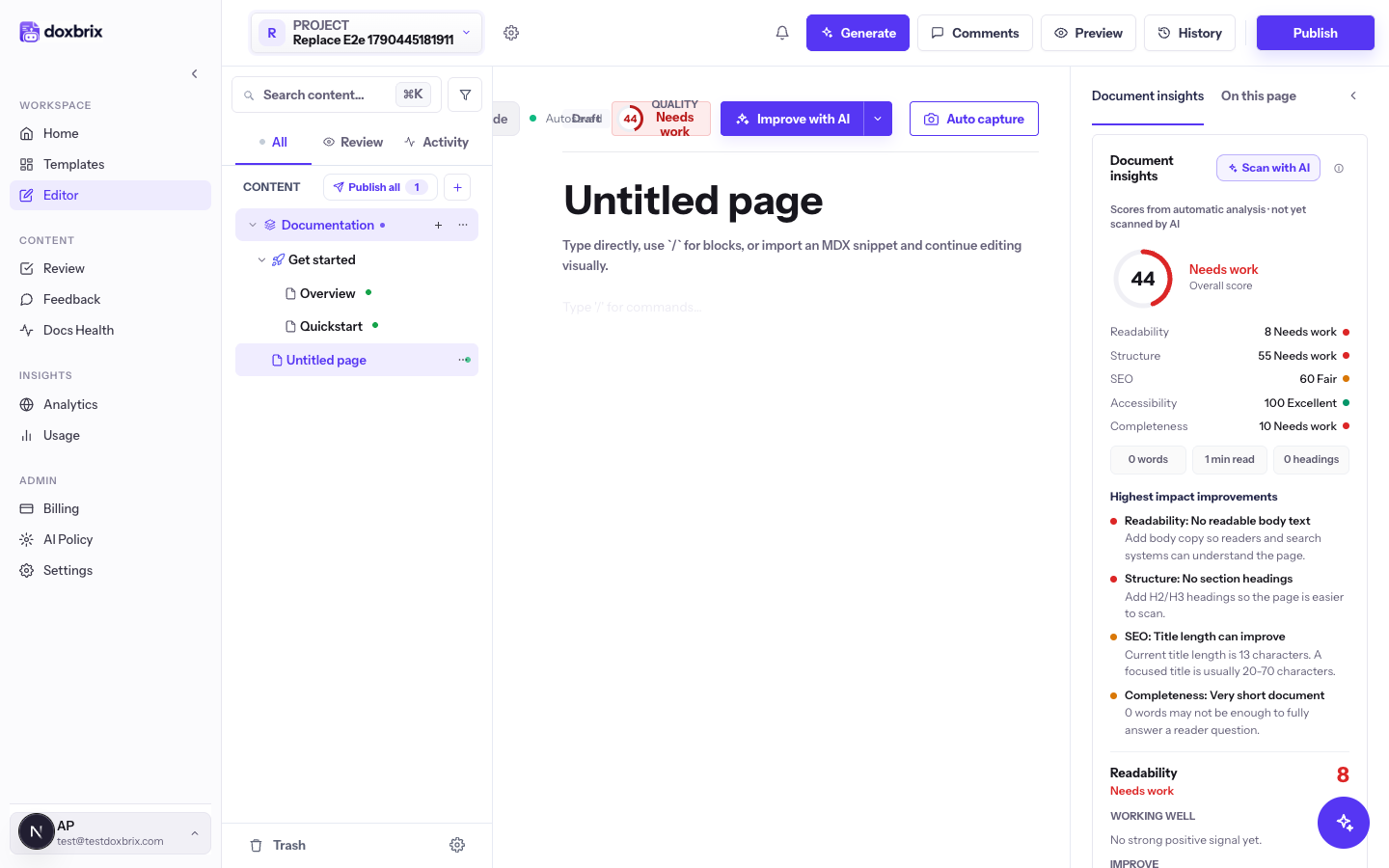
Select the QUALITY badge. Document insights shows the overall score, each area score, page metrics such as word count, reading time and number of headings, and a list of Highest impact improvements. Start with the lowest area score.
Until you run an AI scan, the panel shows Scores from automatic analysis · not yet scanned by AI.
In Document insights, select Scan with AI. The button shows Scanning… while AI reviews the page. When it finishes, the panel shows Last AI scan with the time, and the button changes to Re-scan with AI.
When you run Improve with AI after a scan, the rewrite also addresses the scan's suggestions.
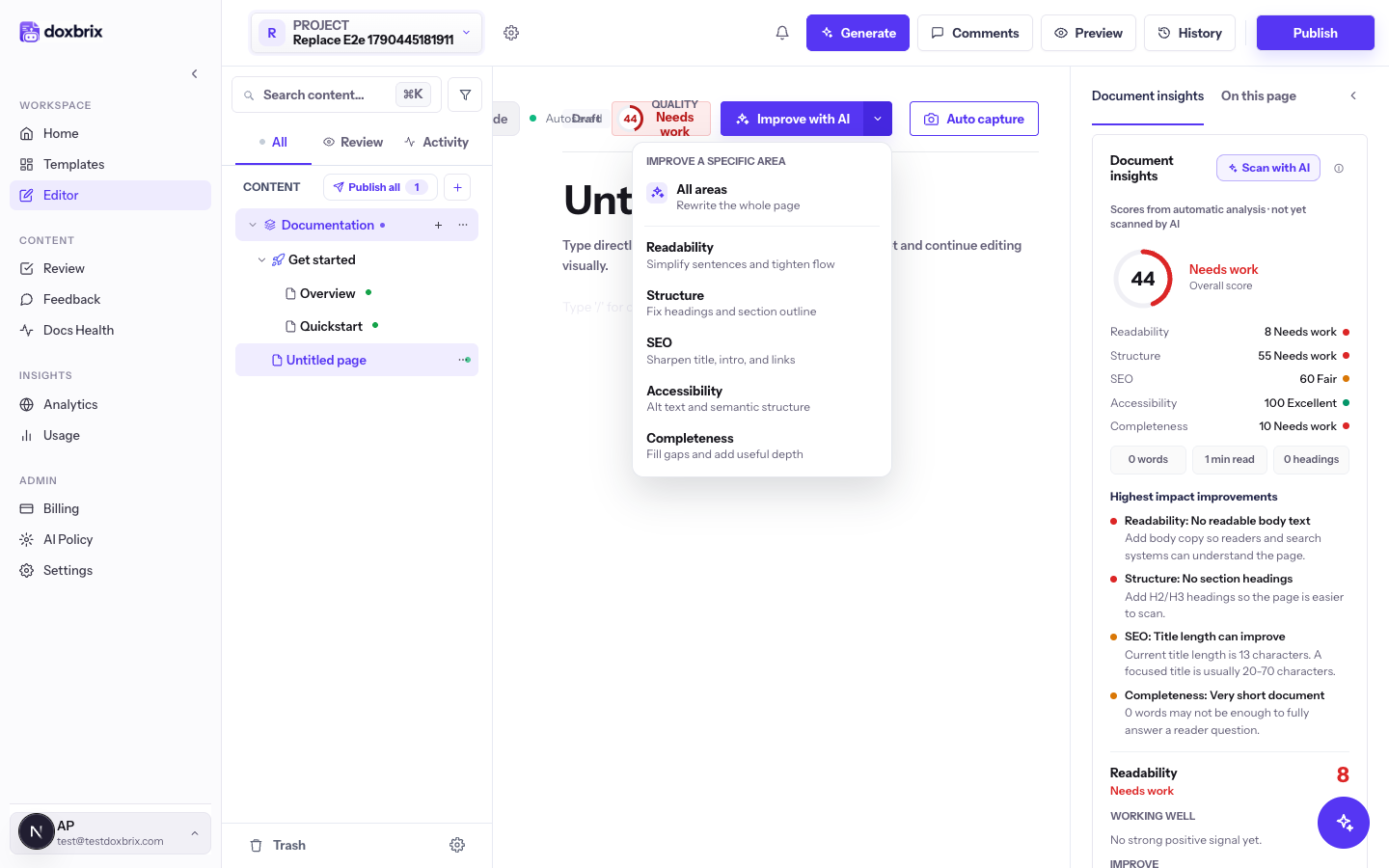
Select the arrow next to Improve with AI. The Improve a specific area menu lists:
| Option | What AI changes |
|---|---|
| All areas | Rewrites the whole page |
| Readability | Simplifies sentences and tightens flow |
| Structure | Fixes headings and the section outline |
| SEO | Sharpens the title, introduction and links |
| Accessibility | Improves alt text and semantic structure |
| Completeness | Fills gaps and adds useful depth |
Select one option. To improve all areas, you can also select the main Improve with AI button.
The button shows Improving… while AI works. When it finishes, the button briefly shows Improved, and the page content, and sometimes the title, are replaced with the rewritten version.
Read the rewritten page carefully before you submit it. AI is instructed not to invent facts, but check every command, value and product name against your source. If you prefer the earlier text, use version history to compare.
Verify
- The QUALITY badge shows a new score after the rewrite. Select it to compare the area scores with the earlier values.
- The area you targeted shows the largest change.
- Preview the page to confirm it reads well. See Preview pages and view version history.
Troubleshooting
For more AI errors, see Troubleshoot AI features.