
Tour the editor
Learn the Doxbrix editor layout, switch between projects, open pages from the content tree, read page status, and unlock a published page for editing.
The editor is where you write and maintain every page of a Doxbrix project. This guide walks you through its three panes, shows you how to switch projects and open a page, explains the status and quality indicators, and shows how to unlock a published page so you can change it.
Before you begin
- Sign in to Doxbrix and have at least one project. To create one, see Create a project or Start from a template.
- To edit a published page, you need the Editor, Admin, or Owner role in the project. See Roles and permissions.
Editor layout at a glance
| Area | What it contains |
|---|---|
| Top bar | The PROJECT switcher, the project settings gear, notifications, and the page actions Generate, Comments, Preview, History, and Publish. On a published page, Edit page takes the place of Publish. |
| Left pane | Search content..., a filter, the All, Review, and Activity tabs, and the CONTENT tree of spaces, groups, and pages. Publish all and New page, group, or space sit above the tree; Trash and Navigation settings sit below it. |
| Center | The page toolbar with the status chip, the Autosaved indicator, the View and Code toggle, the QUALITY score, Improve with AI, and Auto capture, followed by the page content. |
| Right pane | Document insights and On this page. Insights shows an overall score and Readability, Structure, SEO, Accessibility, and Completeness scores, with Scan with AI. |
Steps
Select Editor in the app navigation. The editor opens on your current project. In a project with no content yet, the center shows Start writing with two choices: Add your first block and Import document.
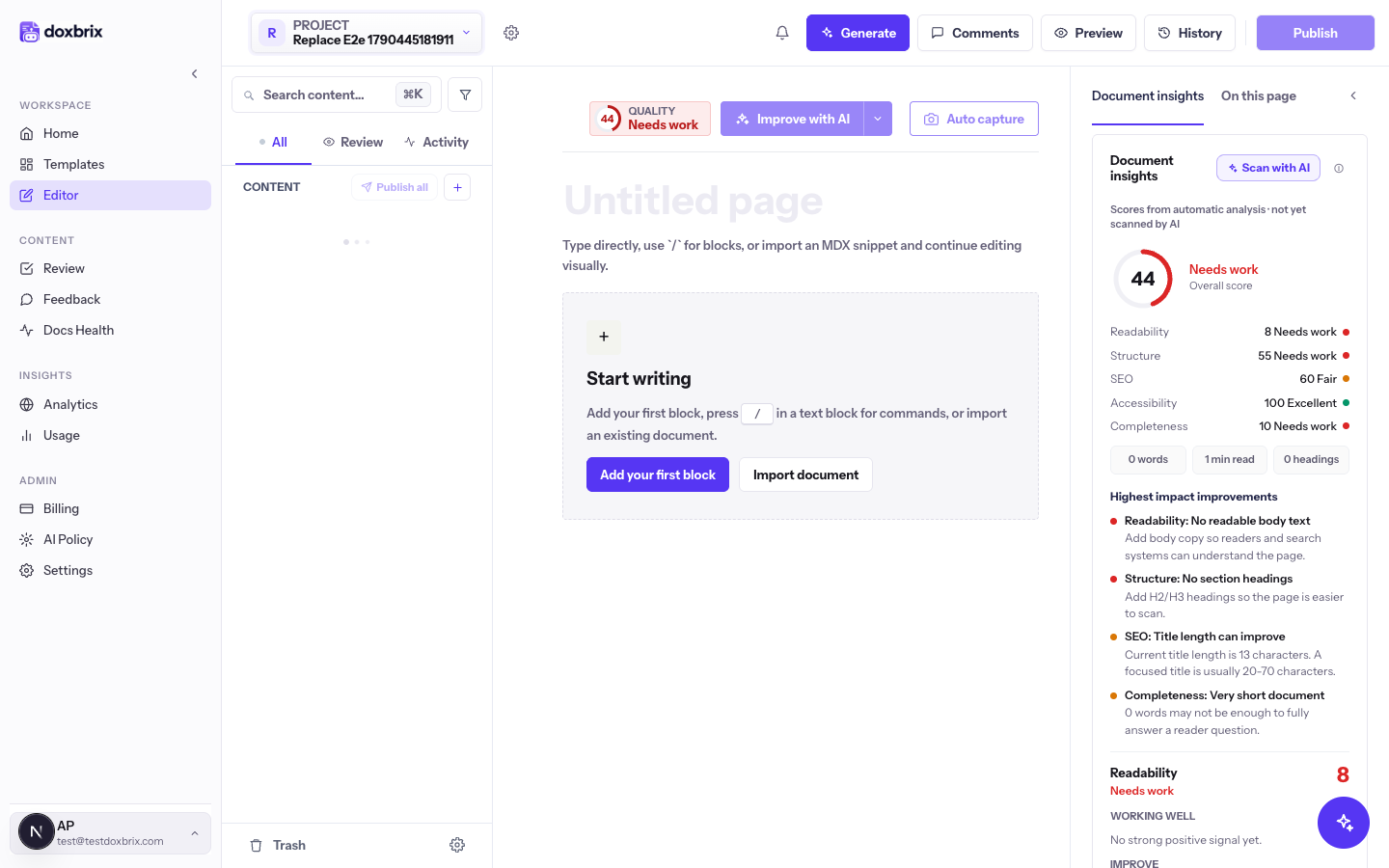
To add content, select Add your first block or type / on an empty line to open the block menu. See Blocks and slash commands reference. To bring in a Word, Markdown, or PDF file, see Import a Word, Markdown or PDF file into a page.
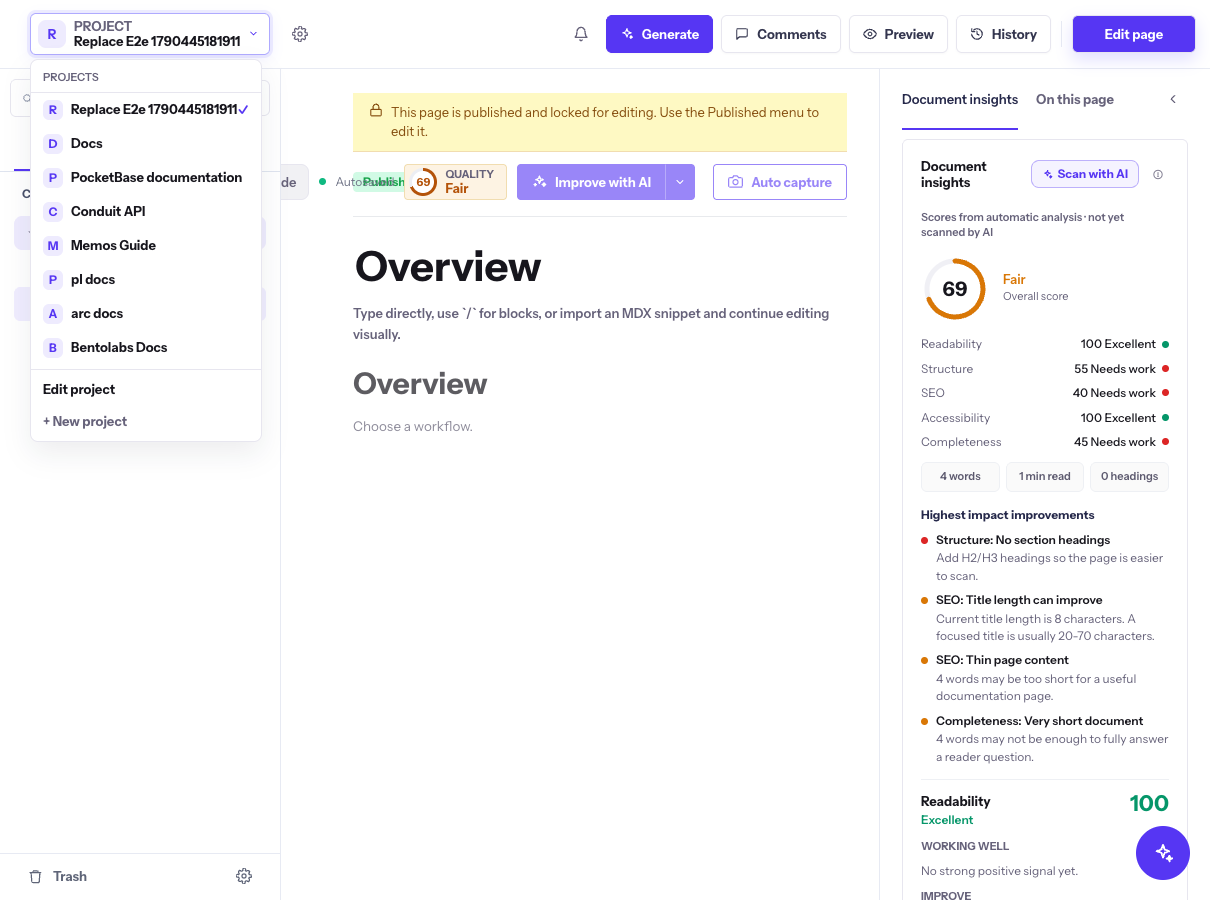
Select the PROJECT switcher at the left of the top bar. The PROJECTS list shows every project you can open, with a check mark next to the current one. Select a project, such as PocketBase documentation, to load it.
The list also offers Edit project, to change the current project's details, and + New project.
In the CONTENT tree, expand a space and a group, then select a page, for example Install and run PocketBase. A dot next to a page in the tree marks it as published. To find a page quickly, type part of its title in Search content....
The page opens in the center. The right pane updates its Document insights scores, and On this page lists the page headings.
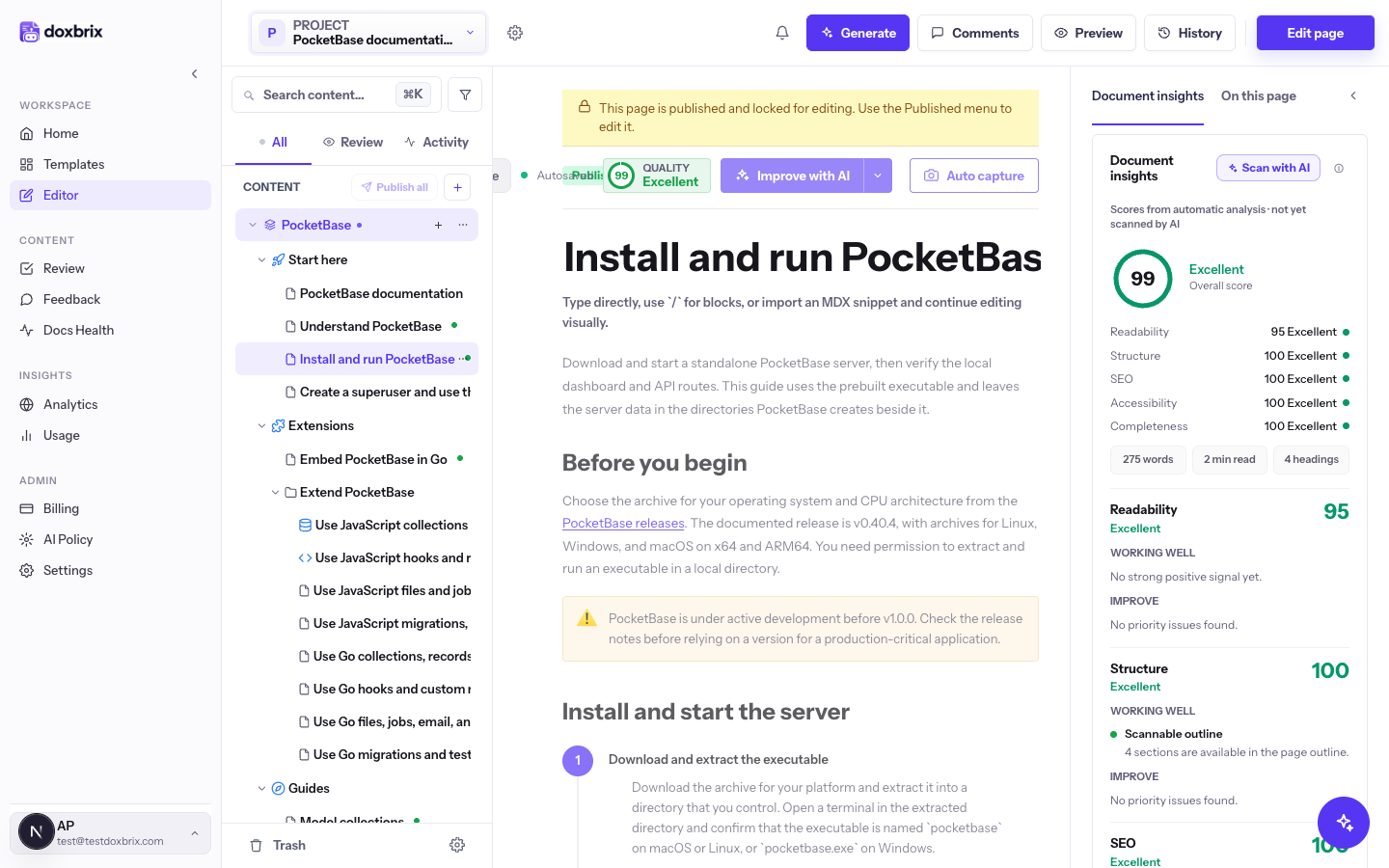
Check the status chip at the left of the page toolbar. It shows one of five states:
| Status | Meaning |
|---|---|
| Draft | Being written. Changes are not on the reader site. |
| In Review | Submitted for approval. If the page belongs to a review batch, the chip reads In Review · batch and opens the batch. |
| Published | Live on the reader site and locked for editing. |
| Unpublished | Removed from the reader site. |
| Archived | Kept for reference and no longer active. |
Next to the chip, Autosaved confirms that Doxbrix saved your latest change. The QUALITY score rates the page as Excellent (88 or higher), Good (75–87), Fair (60–74), or Poor (below 60). For the full workflow, see Page lifecycle and approval policies.
A published page shows the banner "This page is published and locked for editing. Use the Published menu to edit it." Select Edit page in the top bar. The button reads Preparing… while Doxbrix works, then the page returns to Draft status and becomes editable.
If you do not have the Editor, Admin, or Owner role, the button shows Published and is disabled.
Select Preview in the top bar. A new browser tab opens the page as readers see it on the reader site, rendered in preview mode. For more, see Preview pages and view version history.
Verify
You are oriented in the editor when you can:
- switch projects with the PROJECT switcher;
- open a page from the CONTENT tree and see its headings in On this page;
- see Draft in the status chip after you select Edit page on a published page;
- open Preview in a new tab.
Switch between View and Code
In the block editor, the View and Code toggle in the page toolbar switches between the visual block view and the page's MDX source. Use Code to paste or adjust MDX directly, then switch back to View. A project administrator can turn source mode off, in which case the toggle has no effect.