
Submit, review and approve pages
Submit a draft page or a whole section for review, then approve and publish it or send it back to the author from the Review queue or the editor.
Use review to make sure a second person checks a page before readers see it. In this guide, an author submits a draft or a whole section, and a reviewer finds it in the Review queue, then either approves and publishes it or rejects it with a reason.
Which buttons you see depends on the project's Approval requirement. If you have not decided on one yet, read Page lifecycle and approval policies first.
Before you begin
- To submit: you need the editor, admin or owner role in the project, and the page must be a draft.
- To approve or reject: with Project review, you need the admin or owner role. With Section review, editors can approve too. Viewers cannot review.
- If the project's Page owner mode is Required, assign a page owner before you submit.
- If the project uses No required approval, there is no review step: the editor shows Publish instead of Submit for review, and drafts go live immediately. See Publish and edit published pages.
Submit a page or section for review
Select the draft page in the space tree. The top bar shows Submit for review on the right.
Select Submit for review to send only this page. If other drafts share the page's section, the button has an arrow. Select the arrow (More submit options) to choose between:
- Submit this page only: only this page goes to the reviewer.
- Submit whole section · *section name*: includes every draft in that section.
To submit a whole group or space from the space tree, use its Submit section for review (n) or Submit space for review (n) action, where n is the number of drafts.
When you submit a section or space, a dialog opens. Under Pages to include, clear any drafts you want to hold back; pages that are not drafts are listed under Not eligible. Choose a Reviewer, or leave Unassigned, any admin can review. Optionally add a Note to reviewer, for example Updated install steps for v0.22.
Select Submit n pages.
The page status changes to in review and the editor stops offering Submit for review. If you assigned a reviewer, they receive a notification. The page is not visible to readers yet.
Review and decide
Select Review in the app navigation to open the queue. The counters at the top show Pending items, Batches, Individual pages and Last sync. When nothing waits for you, the queue reads All caught up.
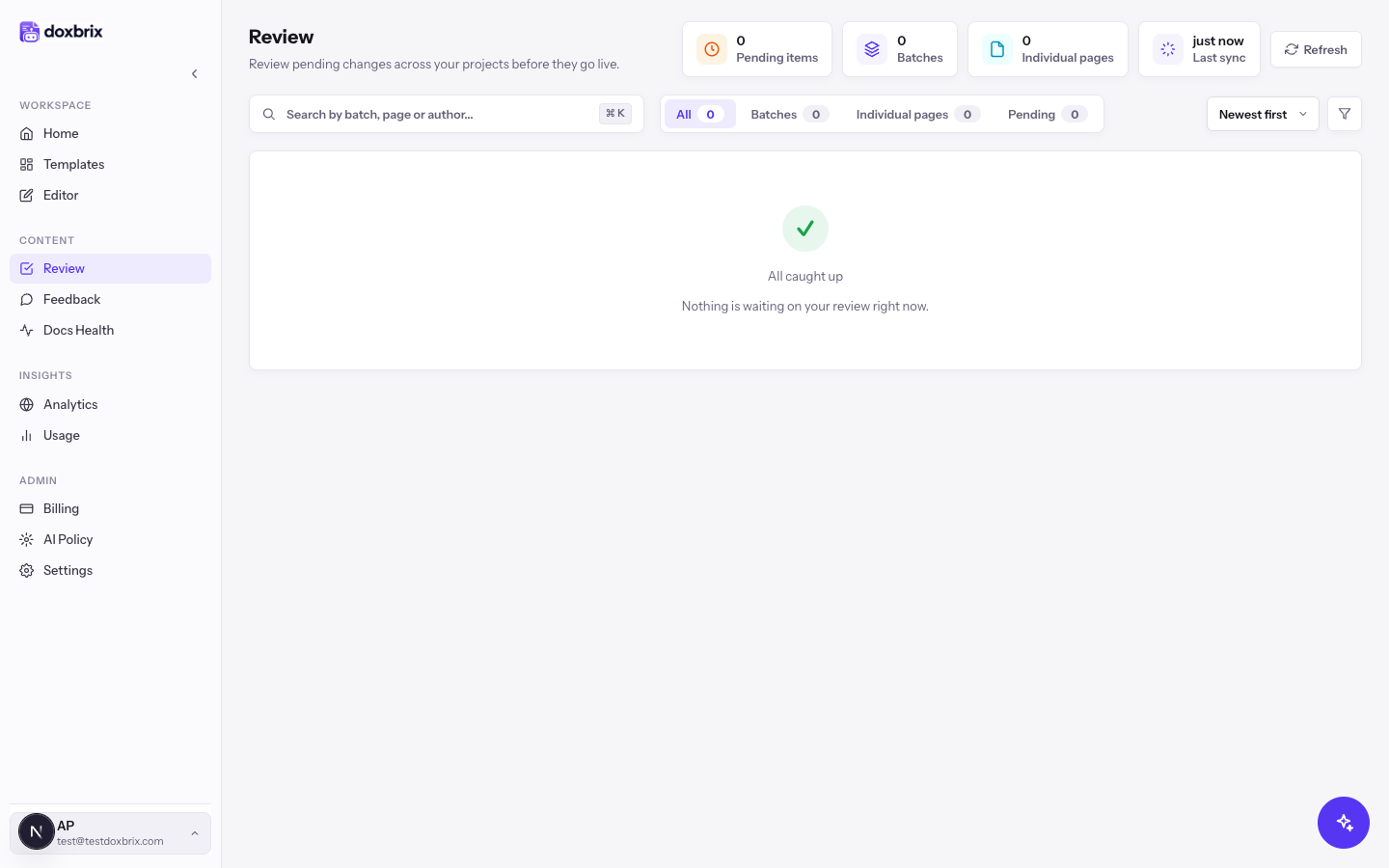
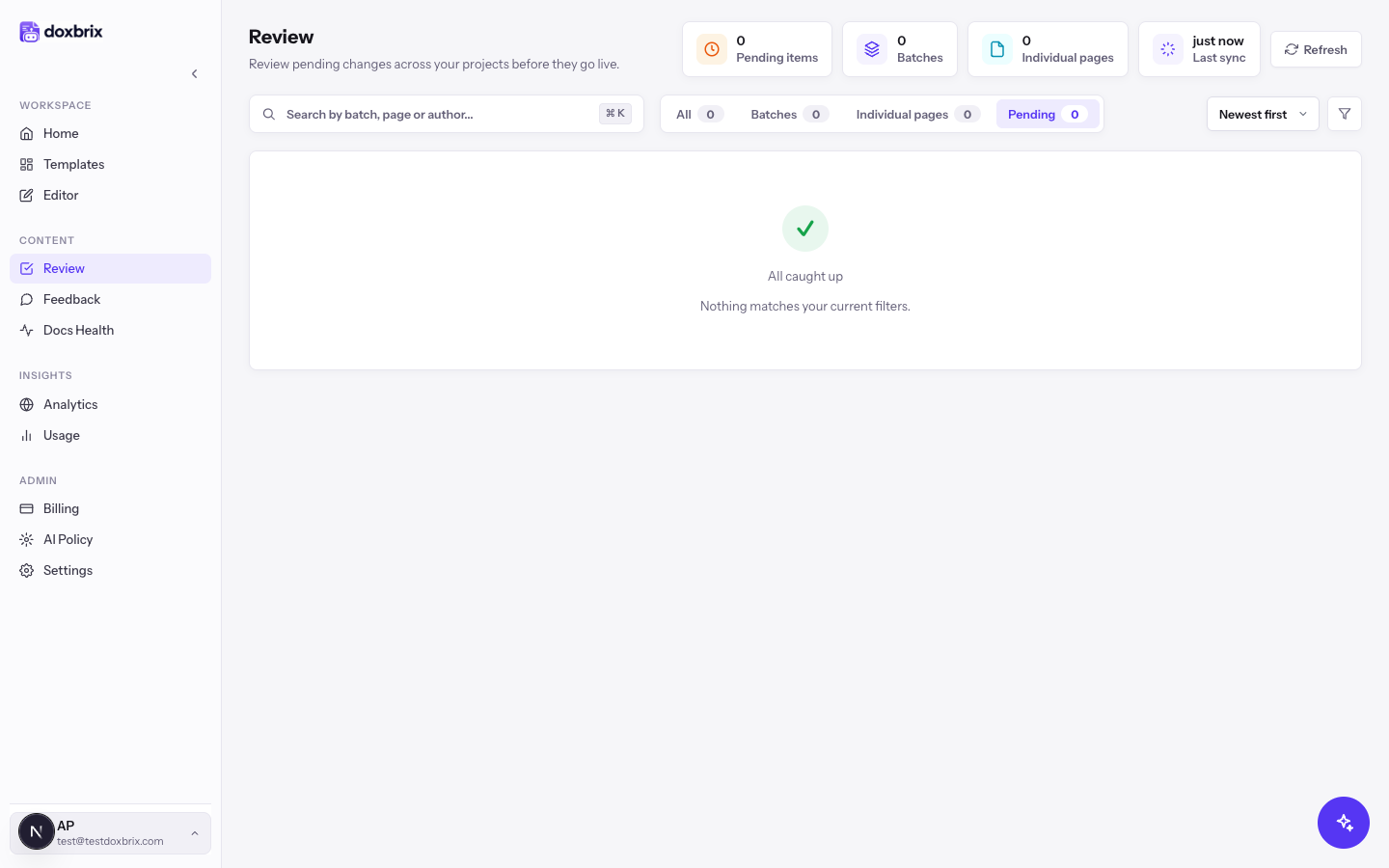
Use the tabs All, Batches, Individual pages and Pending to narrow the list, and type in Search by batch, page or author... to find a specific item. Use the sort menu to choose Newest first or Oldest first. If nothing matches, the queue shows Nothing matches your current filters.
The queue lists submitted work in two blocks. Batches for review holds sections and spaces submitted together. Individual pages is a table with Page, Project, Submitted by, Submitted, Status and Actions columns. A Freshness block may also list pages that are Stale, Review due or Stale + review due.
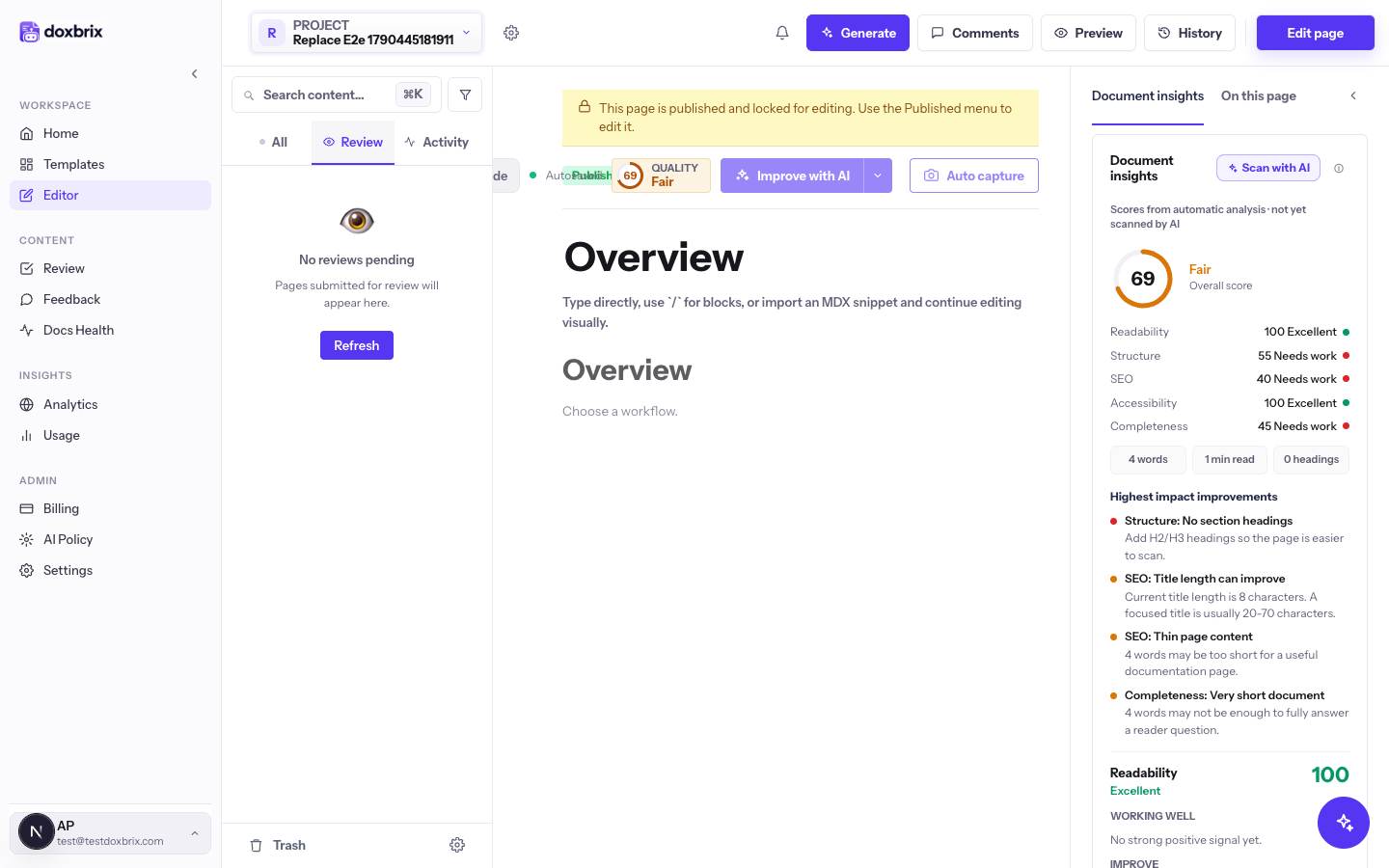
Select Open on a page to open it in the editor. Read the content, check the comments, and select History to compare the draft with the last published version. You can also review from inside the editor: select the Review tab above the space tree to see the pages waiting for you, and Refresh to update the list.
In the queue, select Approve on a page, or Approve all on a batch. In the editor, select Approve & Publish; a dialog asks you to confirm with Approve & publish. When the page belongs to a batch with other pending pages, the arrow next to Approve & Publish offers Approve this page only or Approve whole batch.
The page goes live on the reader site immediately and a new version labeled Published v followed by its number is recorded.
Select Reject (or Reject all / Reject batch for a batch). Explain what needs to change, for example Add the admin API example before publishing, then select Send back to author (or Send batch back to author). The button stays disabled until you enter a reason.
The page returns to draft, the author sees your reason in the editor, and the author is notified.