Brand your site and choose a layout
Set colors, fonts, logos, the default theme, the published layout, the footer, and SEO and social metadata for a Doxbrix reader site.
Make your published documentation look like part of your product. In this guide, you set the brand color, typography, and logos. You also choose the default theme and site layout, edit the footer, and set the metadata that search engines and social previews use.
Use this guide when you launch a new site, when your product branding changes, or when you want readers to land on a help center or an AI workspace instead of a sidebar documentation layout.
Before you begin
- You need the Owner or Admin role in the project. For details, see Roles and permissions.
- Have your brand assets ready: a six-digit hex color such as
#4F46E5, a logo for light backgrounds, and a logo for dark backgrounds. A default social preview image is optional. - Check your plan. The Free plan uses the Documentation (sidebar) layout only and always shows Doxbrix branding. The Starter, Pro, and Business plans can use every layout and can hide "Powered by Doxbrix". For plan details, see Plans and limits reference.
Steps
On the dashboard, select the gear icon on your project card, for example PocketBase documentation. In the project settings sidebar, select Branding.
The Brand identity group shows these fields:
- Primary color: the six-digit hex color used for project theming, for example
#4F46E5. - Font family: the typography used across the project.
- Base font size: body text size in previews and on the published site. Choose Small (14px), Compact (15px), Default (16px), Comfortable (17px), or Large (18px).
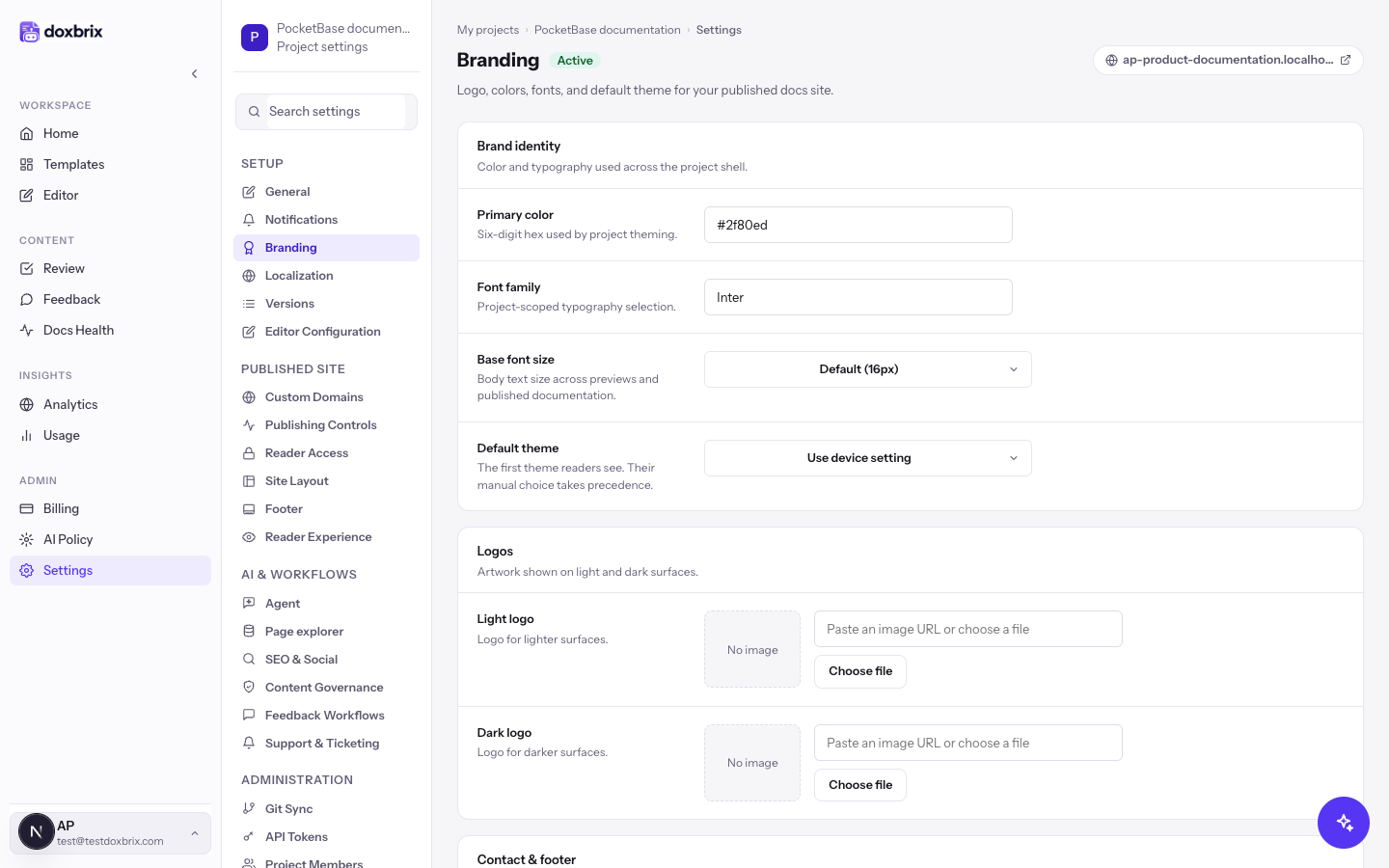
Open the Default theme menu and select Light, Dark, or Use device setting.
This is the first theme readers see. If a reader switches the theme on the site, their own choice takes precedence.
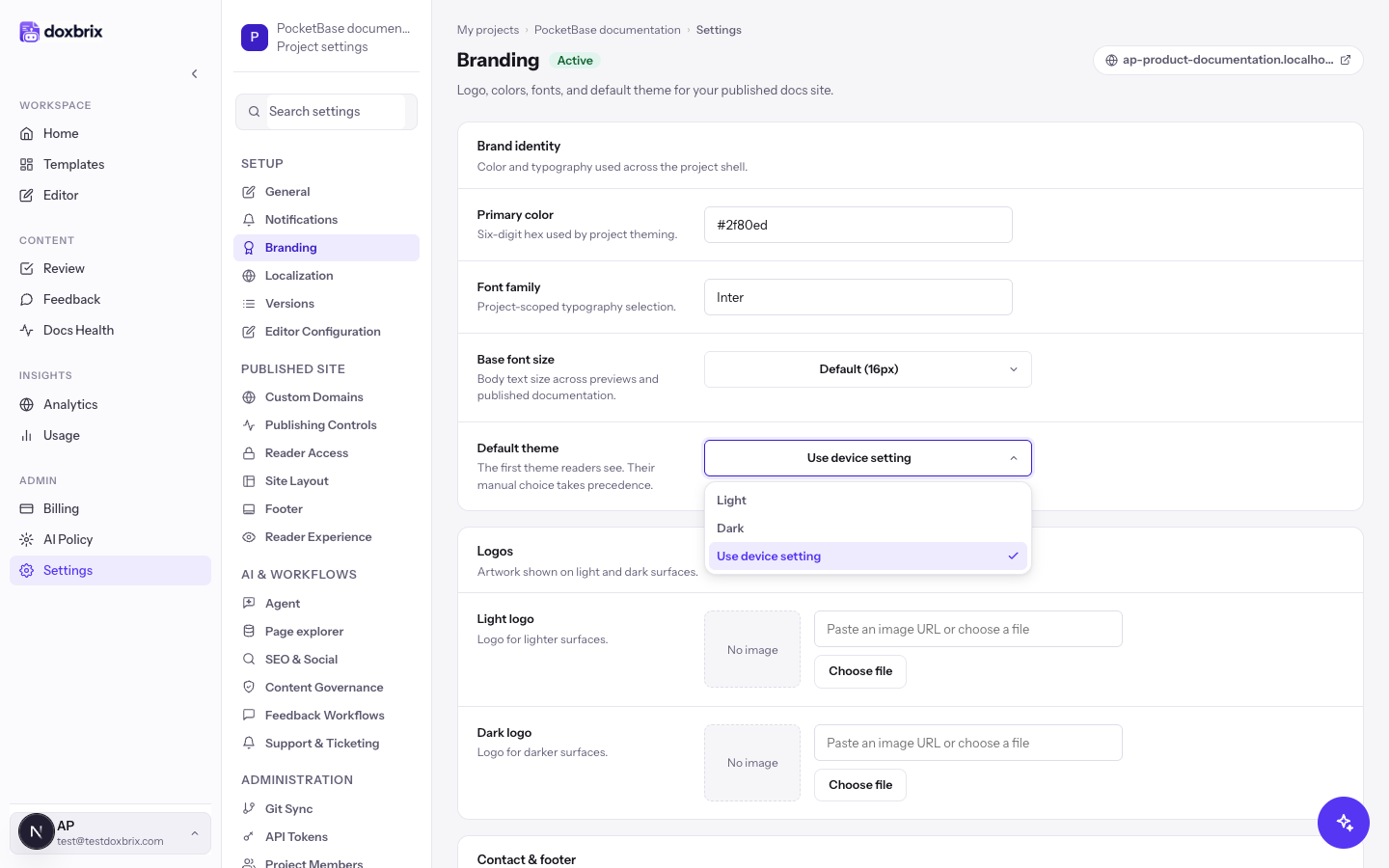
Under Logos, set a Light logo for lighter surfaces and a Dark logo for darker surfaces.
Under Contact & footer, enter a Support email, such as support@example.com, and a Footer identity string, such as © 2026 Example Inc. Select Save changes.
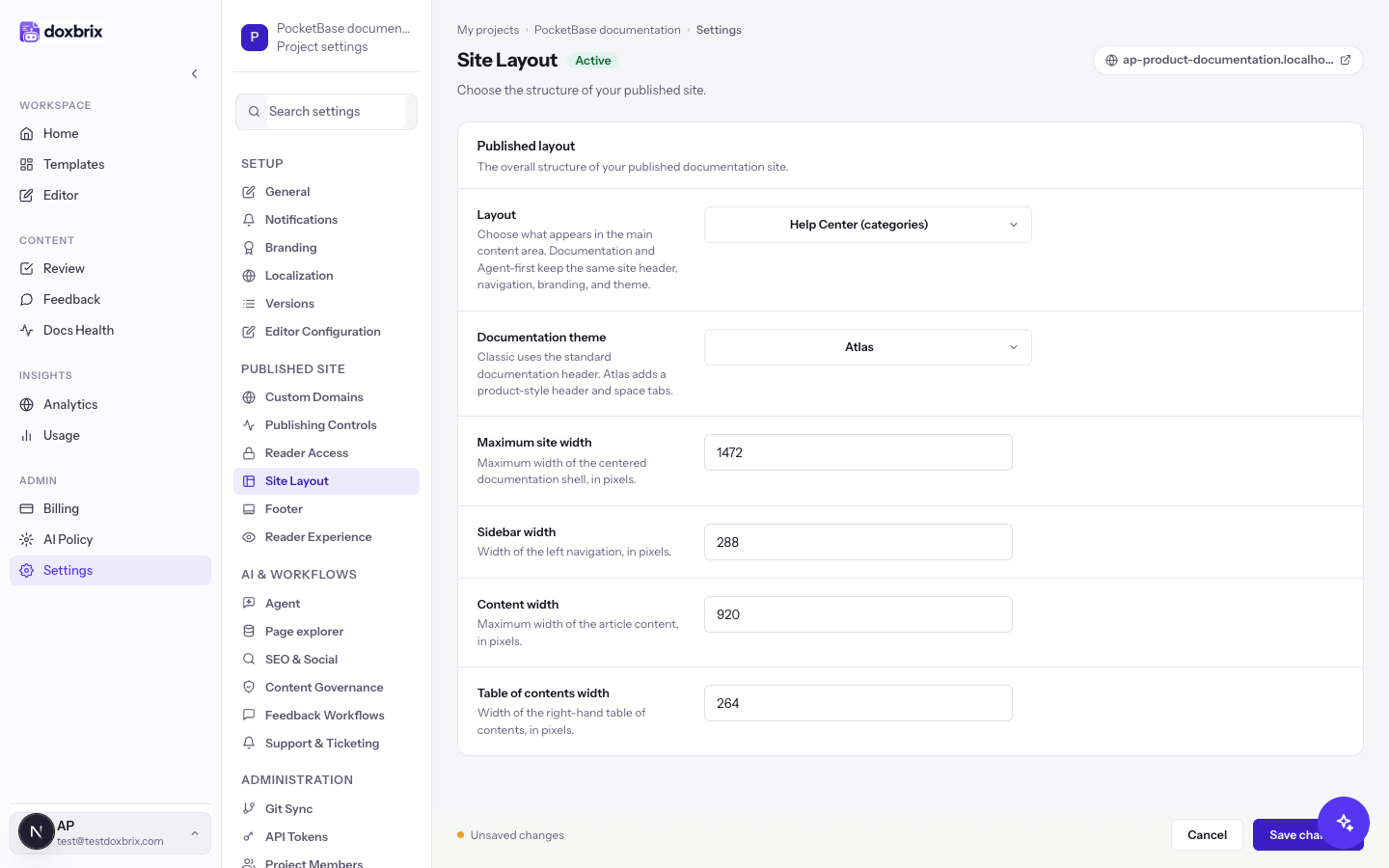
In the settings sidebar, select Site Layout, and then open the Layout menu. The layout controls what appears in the main content area:
| Layout | What readers see |
|---|---|
| Documentation (sidebar) | A classic docs site with left navigation, the article, and an on-page table of contents. |
| Help Center (categories) | A help center home page organized by categories. |
| Agent-first (AI workspace) | An AI workspace where readers start by asking a question. |
Documentation and Agent-first keep the same site header, navigation, branding, and theme.
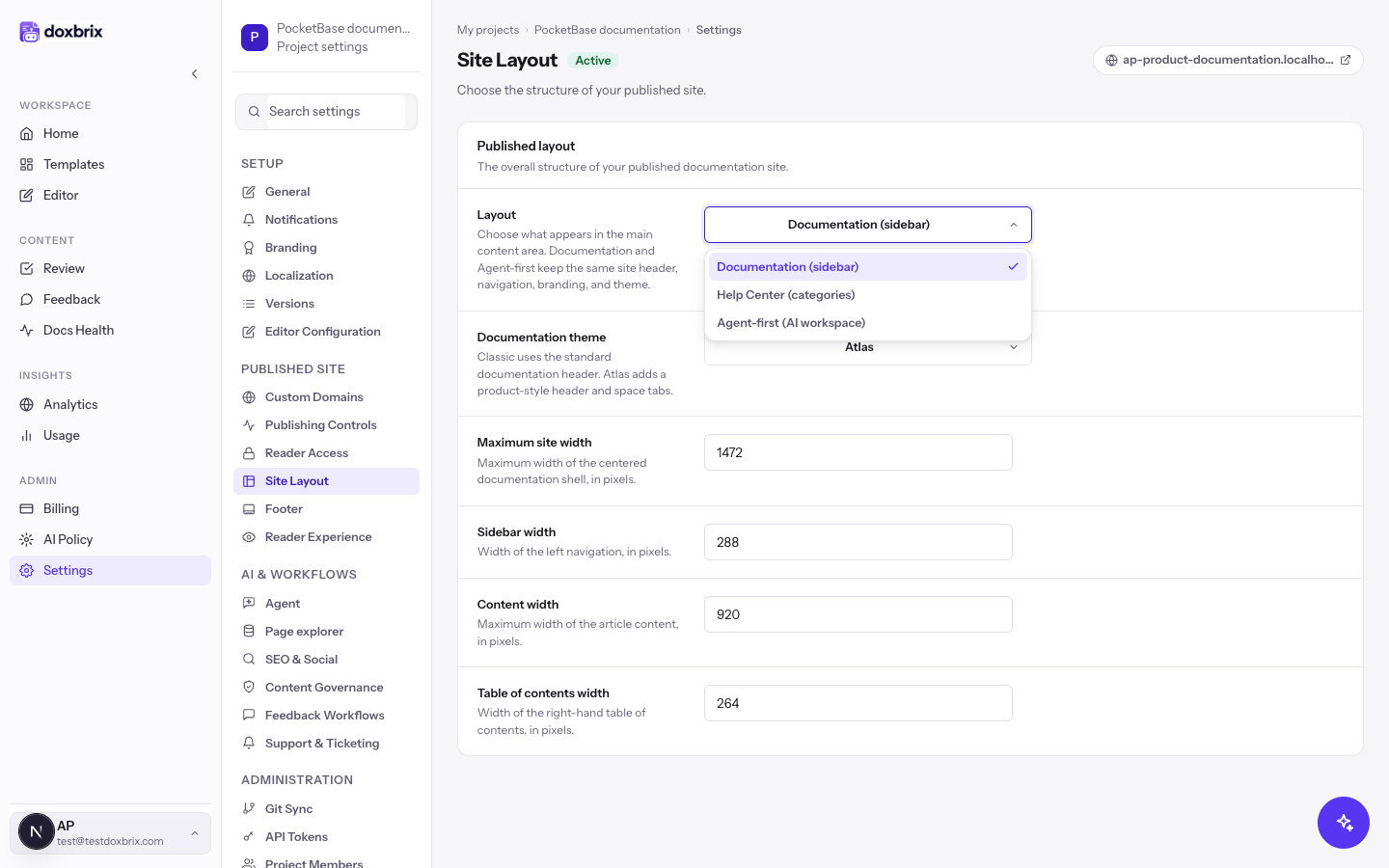
Select a layout, for example Help Center (categories). Then choose a Documentation theme:
- Classic uses the standard documentation header.
- Atlas adds a product-style header and space tabs.
Changing the theme resets the widths to that theme's defaults. You can then adjust each width in pixels:
| Field | Allowed range | Classic default | Atlas default |
|---|---|---|---|
| Maximum site width | 960–1800 | 1600 | 1472 |
| Sidebar width | 240–380 | 338 | 288 |
| Content width | 640–1200 | 940 | 920 |
| Table of contents width | 220–360 | 338 | 264 |
Select Save changes to apply the layout, or Cancel to discard it.
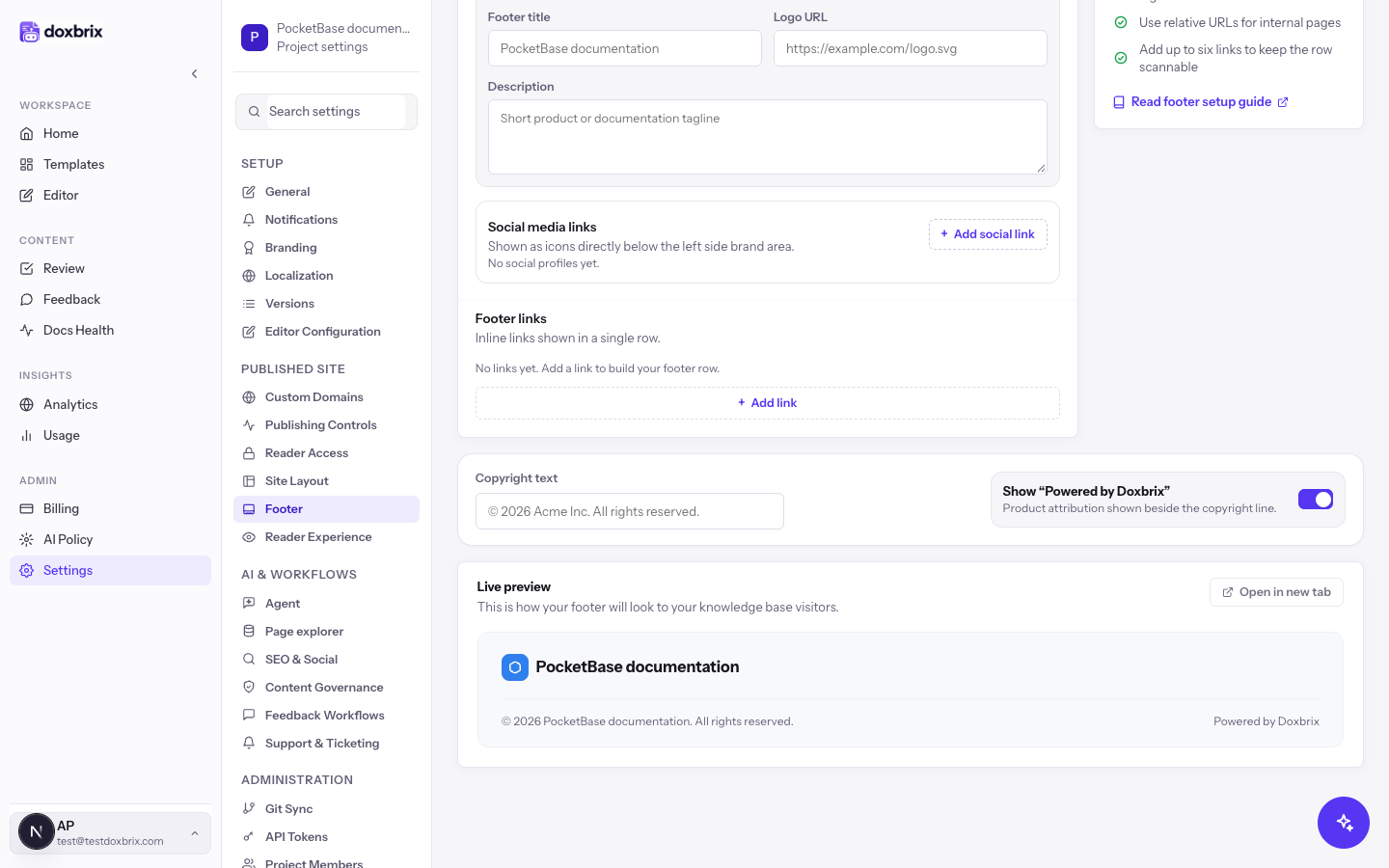
In the settings sidebar, select Footer. The footer builder shows your footer content and a Live preview of the result.
- In Copyright text, enter the copyright line, for example
© 2026 Example Inc. All rights reserved. - Turn Show "Powered by Doxbrix" on or off. This controls the product attribution shown beside the copyright line.
- Check the Live preview, and then select Save changes.
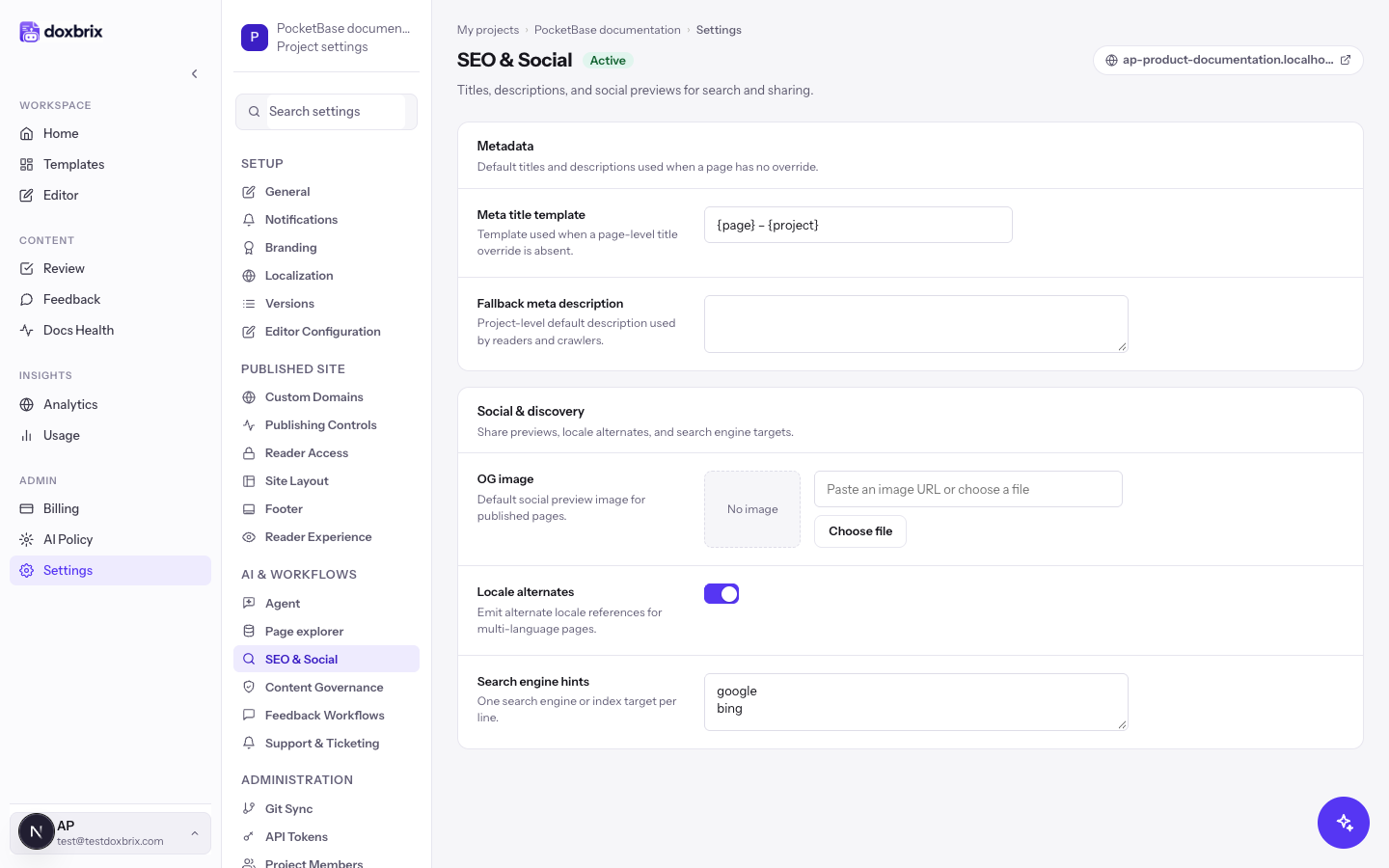
In the settings sidebar, select SEO & Social. These values apply when a page has no override of its own:
- Meta title template: the page title format used when a page has no title override.
- Fallback meta description: the project-level description used by readers and crawlers.
- OG image: the default social preview image for published pages.
- Locale alternates: when on, the site emits alternate locale references for multi-language pages. Turn this on if you publish docs in multiple languages.
- Search engine hints: one search engine or index target per line.
Select Save changes.
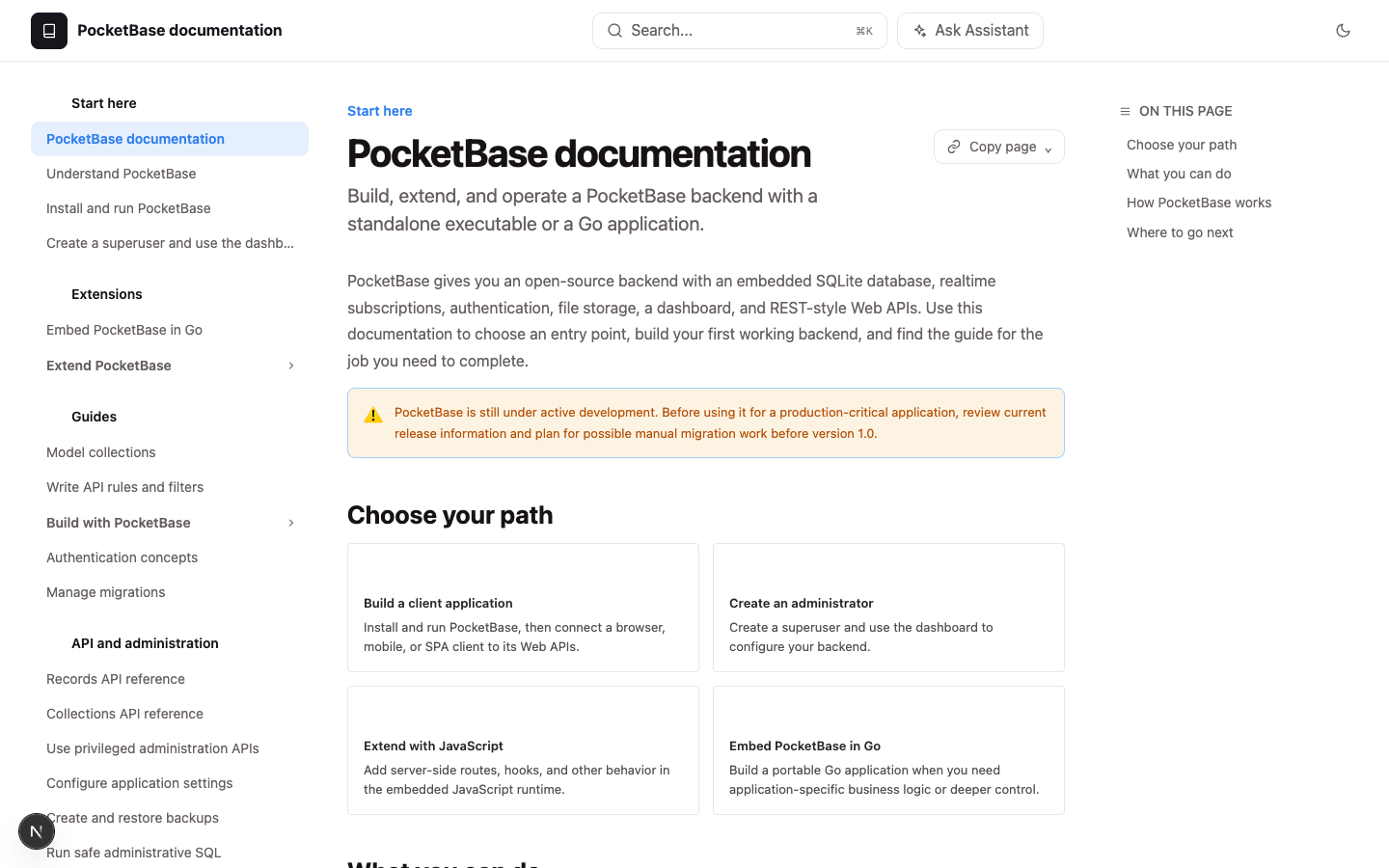
Go back to the dashboard and select Docs site on the project card. The reader site opens with your saved branding, theme, layout, and footer.
Verify
On the published site, confirm that:
- links, buttons, and accents use your Primary color;
- the header shows the Light logo in light mode and the Dark logo in dark mode;
- a first-time visitor sees the Default theme you chose;
- the main content area matches the selected Layout;
- the footer shows your Copyright text, and shows or hides "Powered by Doxbrix" as you set it.
To check social previews, share a page URL in a tool that renders Open Graph previews and confirm the OG image appears.