
Manage your profile and account security
Update your name, job title, bio, timezone and locale, change your password, revoke other sessions and sign out of Doxbrix.
Use your personal settings to control how you appear to teammates and to keep your Doxbrix account secure. This guide shows you how to update your profile, change your password, revoke sessions on other devices and sign out.
Personal settings belong to you, not to a workspace. The changes you make here follow you into every workspace you are a member of. Workspace-wide options such as members, SSO and billing live in workspace settings instead.
Before you begin
- You need a Doxbrix account and must be signed in. See Sign in and reset your password if you cannot reach the dashboard.
- Any role can open personal settings. No plan restriction applies.
- To change your password, you need your current password. If you forgot it, sign out and use the password reset flow on the sign-in page instead.
Update your profile
On the dashboard, select your account button at the bottom of the left sidebar. The Account menu opens with Profile & Account, Workspace settings and Sign out.
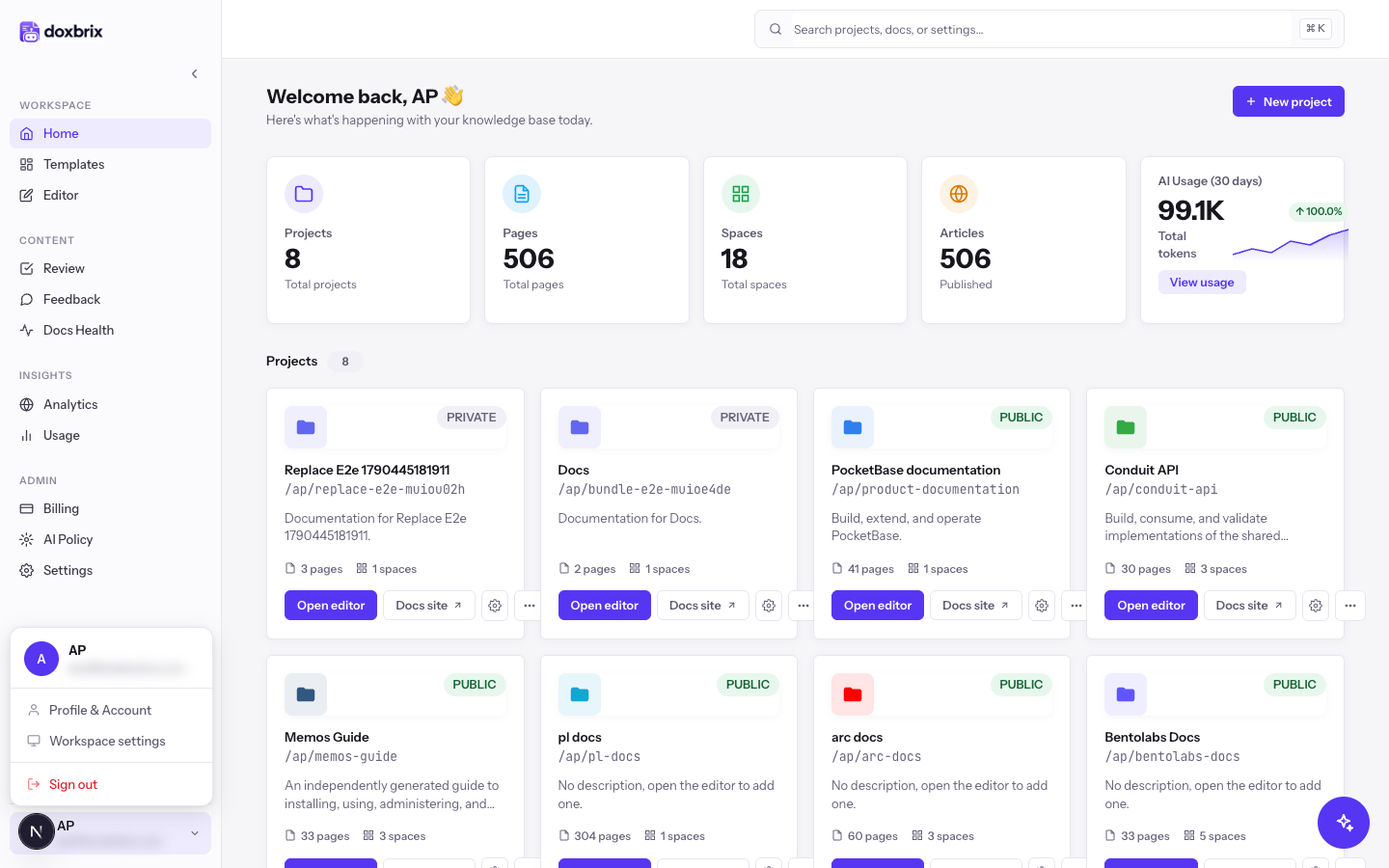
Select Profile & Account. Doxbrix opens your personal settings at /settings/personal on the Profile tab. The settings navigation lists three tabs: Profile, Account Security and Access Tokens.
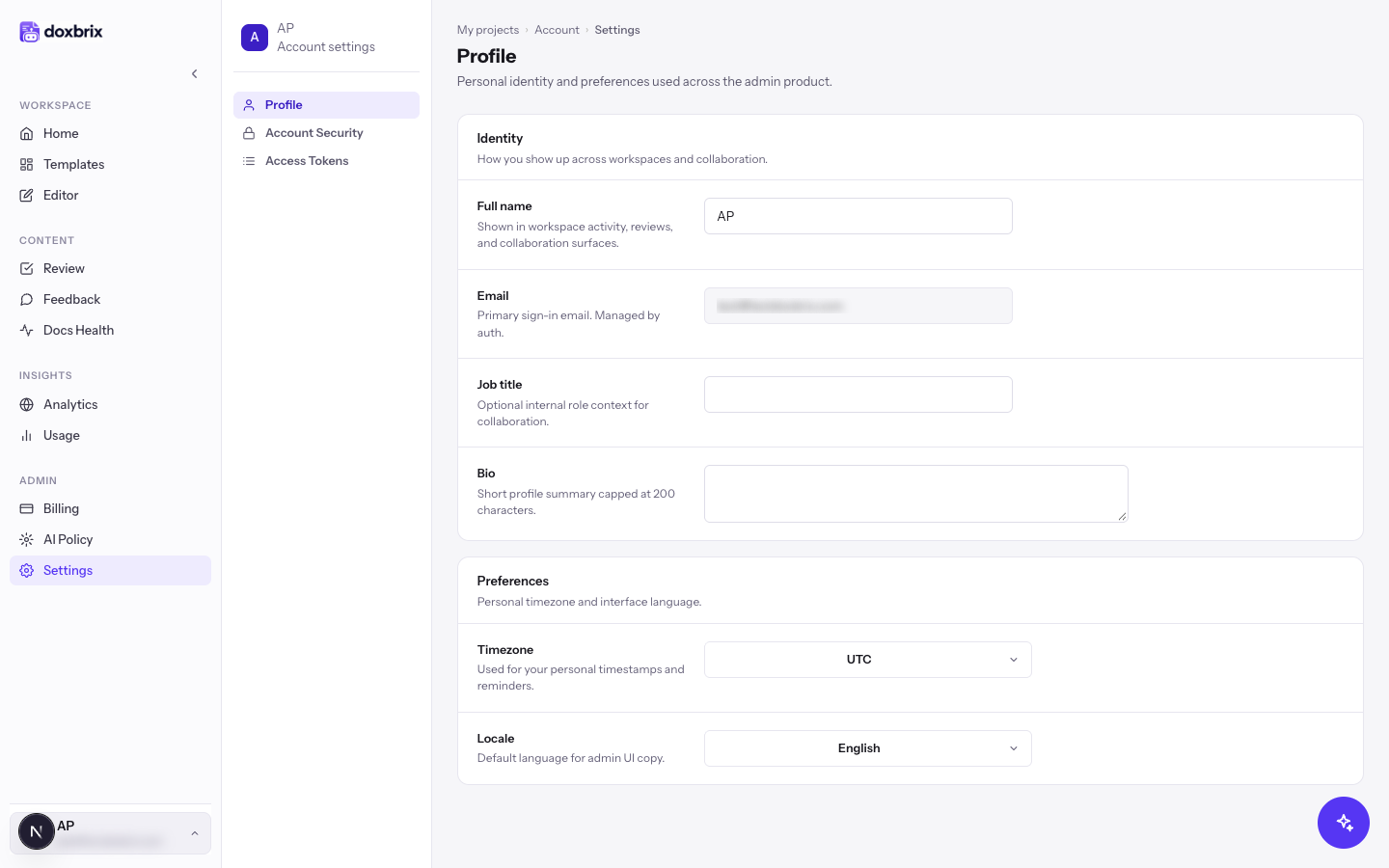
Under Identity, update any of these fields:
- Full name: shown in workspace activity, reviews and collaboration surfaces, for example
Alex Rivera. - Job title: optional context for collaborators, for example
Technical writer. - Bio: a short profile summary of up to 200 characters.
The Email field is read-only.
Under Preferences, choose a Timezone for your personal timestamps and reminders. The list is searchable, so you can type a city such as Berlin. Then choose a Locale, which sets the default language for the admin interface.
As soon as you change a value, the settings footer shows Unsaved changes.
Select Save changes. Doxbrix confirms with the message Personal settings saved. To undo your edits instead, select Cancel.
If you try to leave the page with unsaved edits, Doxbrix asks Discard unsaved changes? so you do not lose work by accident.
Change your password
In the settings navigation, select Account Security. This tab holds the Password and Sessions controls.
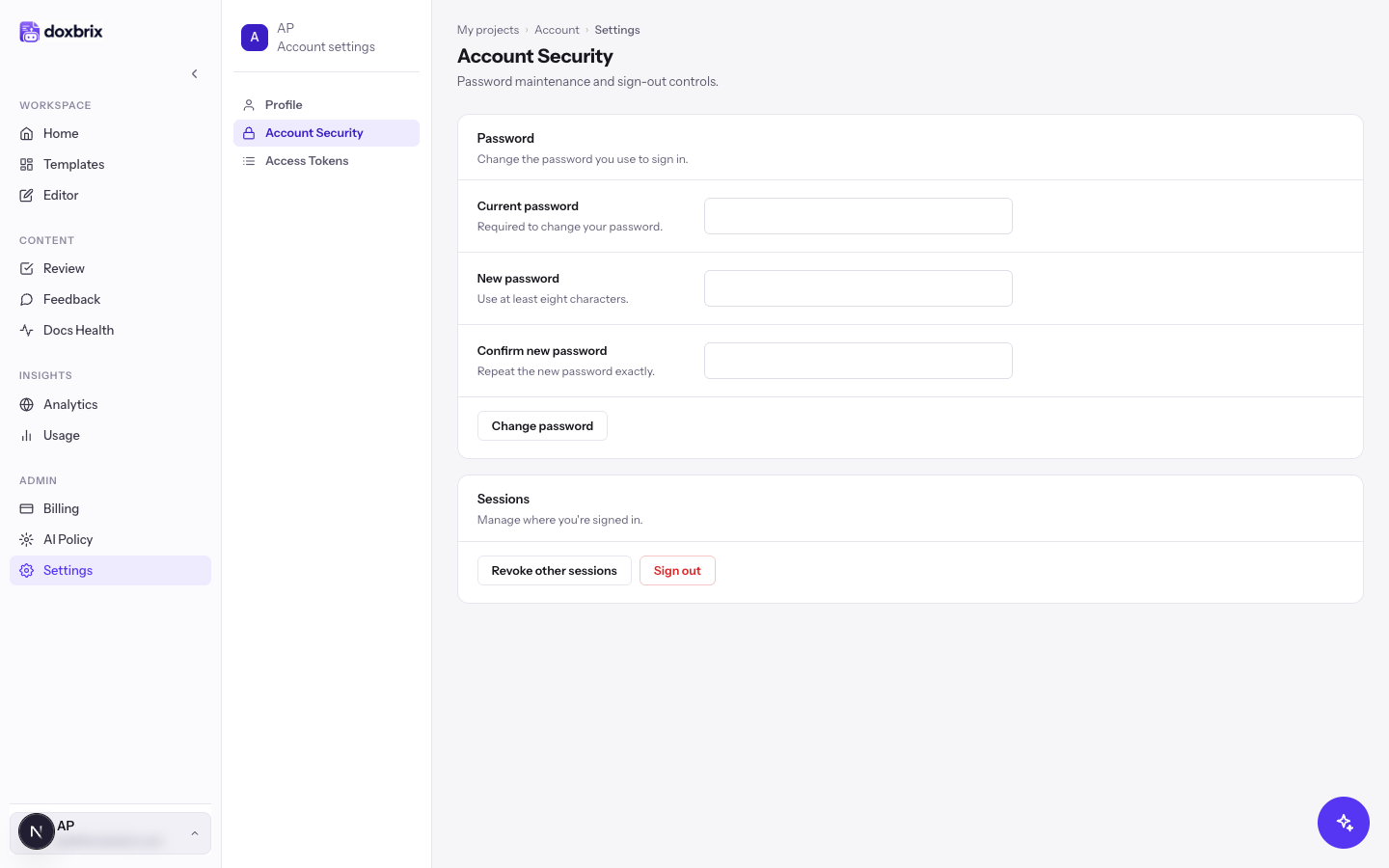
Under Password, enter:
- Current password: the password you use to sign in today.
- New password: at least eight characters.
- Confirm new password: the new password repeated exactly.
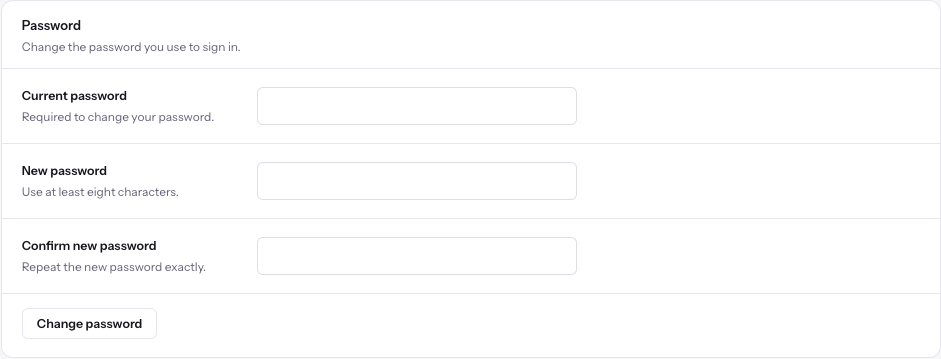
Select Change password. The button shows Changing… while Doxbrix updates your password. When it finishes, the fields clear and Doxbrix shows Password changed.
Changing your password does not sign you out of other devices. To end those sessions too, follow the next procedure.
Revoke other sessions or sign out
A session is a signed-in browser or device. Revoke other sessions when you have signed in on a shared computer, lost a device, or changed your password after a suspected compromise.
On the Account Security tab, under Sessions, select Revoke other sessions. Doxbrix signs out every other browser and device and keeps your current session. It confirms with Other sessions were revoked.
To end your current session, select Sign out. If you have unsaved profile edits, Doxbrix asks you to confirm first. After you sign out, Doxbrix returns you to the sign-in page.
Find your personal access tokens
The Access Tokens tab holds personal access tokens for the dxb CLI and the public API. Tokens start with dxb_ and carry scopes such as Read docs, Write docs and Use AI. The tab has no Save changes footer: you create and revoke tokens directly.
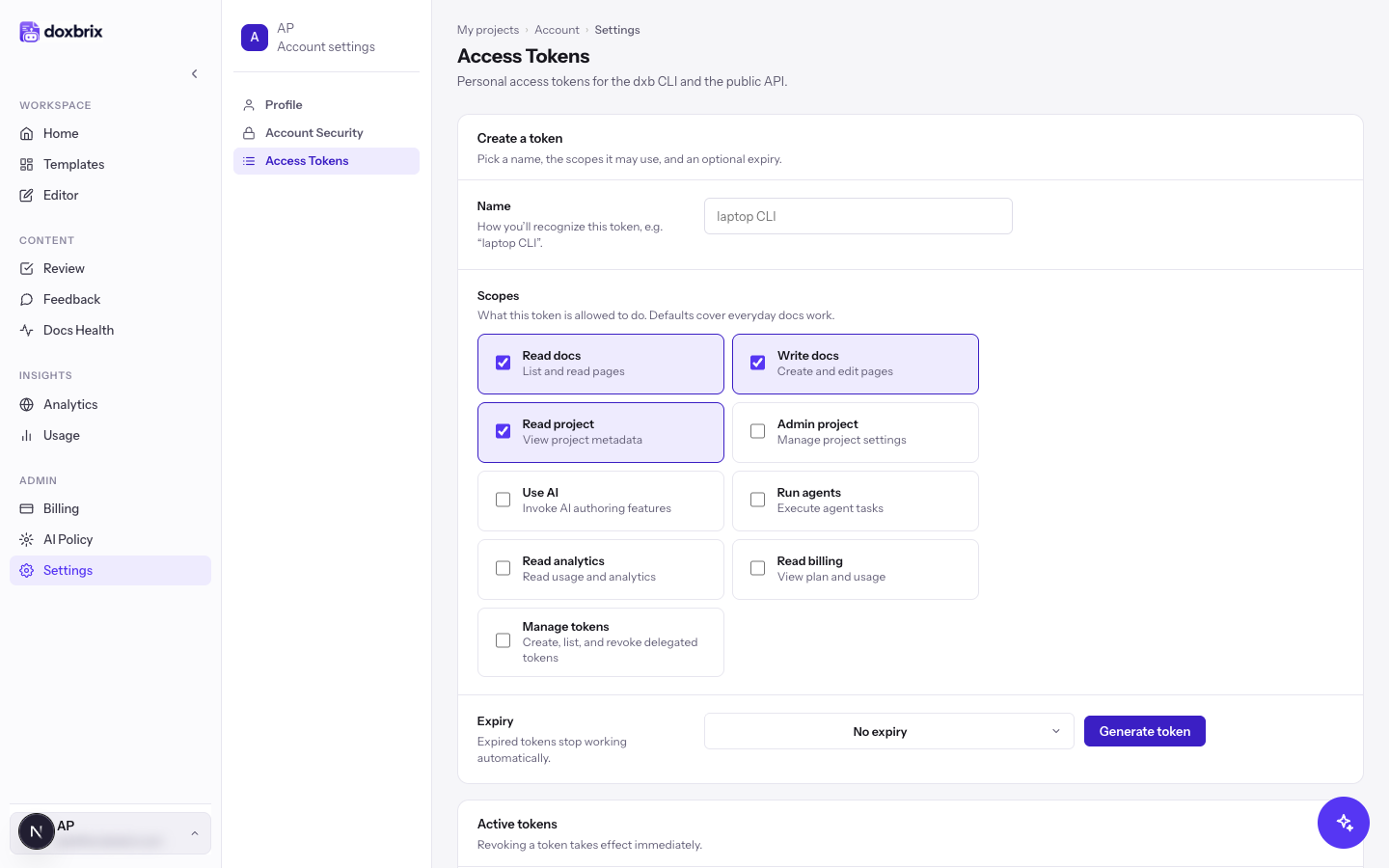
To create, scope and revoke tokens, follow Create and revoke access tokens.
Verify your changes
- Reload
/settings/personal. Your saved name, job title, bio, timezone and locale appear on the Profile tab. - After a password change, sign out and sign in again with the new password.
- After you revoke other sessions, another browser where you were signed in returns to the sign-in page on its next request.