What readers see: search, navigation and switchers
Configure prev/next navigation, top navigation links, the language switcher and the support button, and learn how site search works for readers.
Use the Reader Experience settings to control how readers move around your published site: page-to-page navigation, utility links in the top bar, where the language selector appears, and the support button. This guide also explains what readers get from site search, the sidebar, and the language and version switchers, so you can predict what your published site looks like.
Before you begin
- You need a project with at least one published page. See Publish and edit published pages.
- You need a role that can manage project settings, such as project owner or admin. See Roles and permissions.
- Decide which utility links you want in the top bar, for example a changelog, a status page, or your GitHub repository.
Configure reader navigation
On the dashboard, select the gear icon on your project card. The project settings open on General.
In the settings sidebar, select Reader Experience. The page shows three groups: Navigation, Top navigation links, and Support CTA.
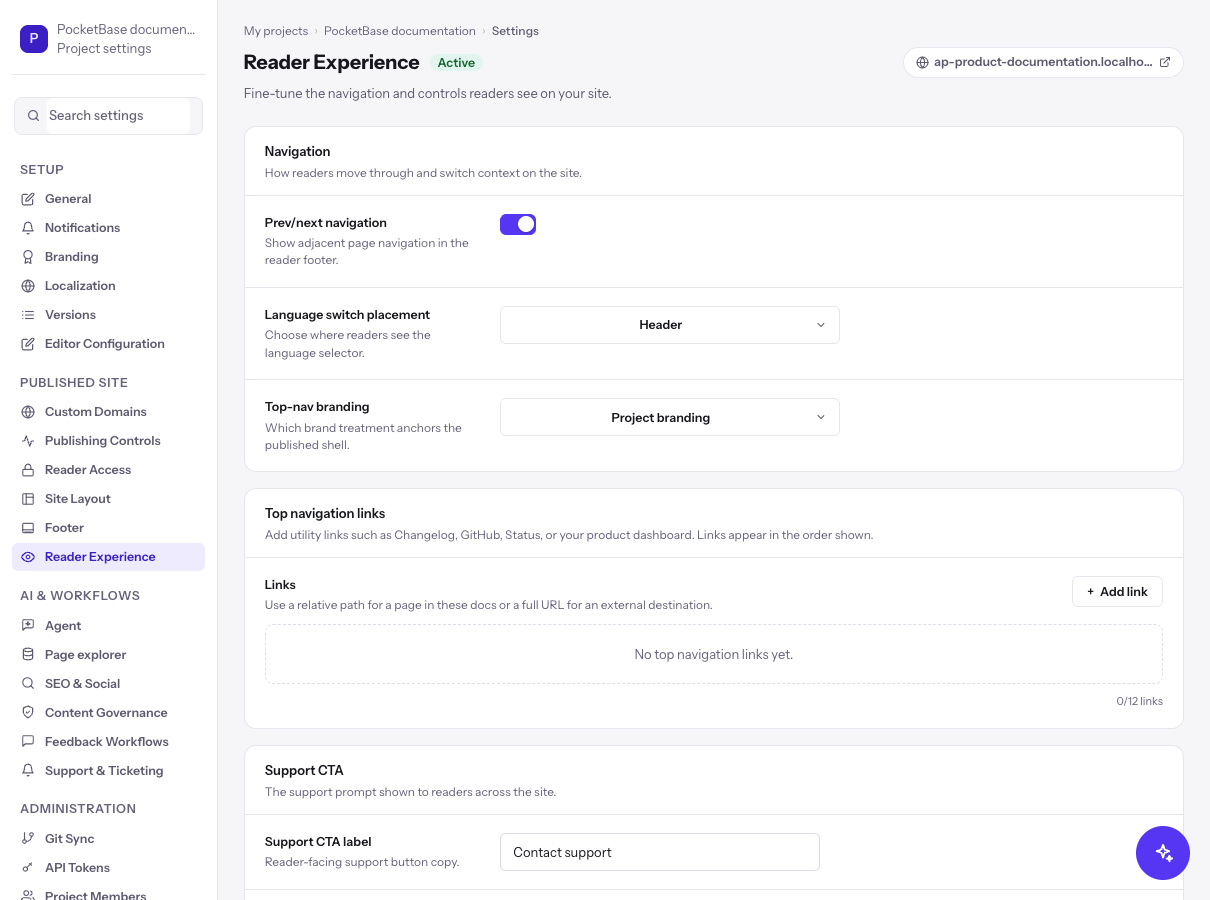
In Navigation, set these options:
| Setting | Options | Effect |
|---|---|---|
| Prev/next navigation | On or off | Shows links to the previous and next page in the reader footer. |
| Language switch placement | Header, Footer, Both | Chooses where readers see the language selector. |
| Top-nav branding | Project branding, Workspace branding, Minimal | Chooses which brand treatment anchors the top bar of the published site. |
The language selector only appears when the project has more than one enabled language. See Publish docs in multiple languages.
In Top navigation links, select Add link and fill in the fields:
- Label: the text readers see, for example
Changelog. - URL: a relative path for a page in these docs, such as
/changelog, or a full URL for an external destination, such ashttps://github.com/acme. - Icon (optional): an icon name, for example
github.
Links appear in the order shown. Use the up and down arrows to reorder a link, and the remove control to delete it. You can add up to 12 links. When no links exist, the group shows No top navigation links yet.
In Support CTA, enter the Support CTA label, for example Contact support, and the Support CTA URL, for example https://support.example.com. The URL is the destination of the support button or support prompt that readers see across the site.
Select Save changes. To undo edits you have not saved, select Discard.
What readers see on the published site
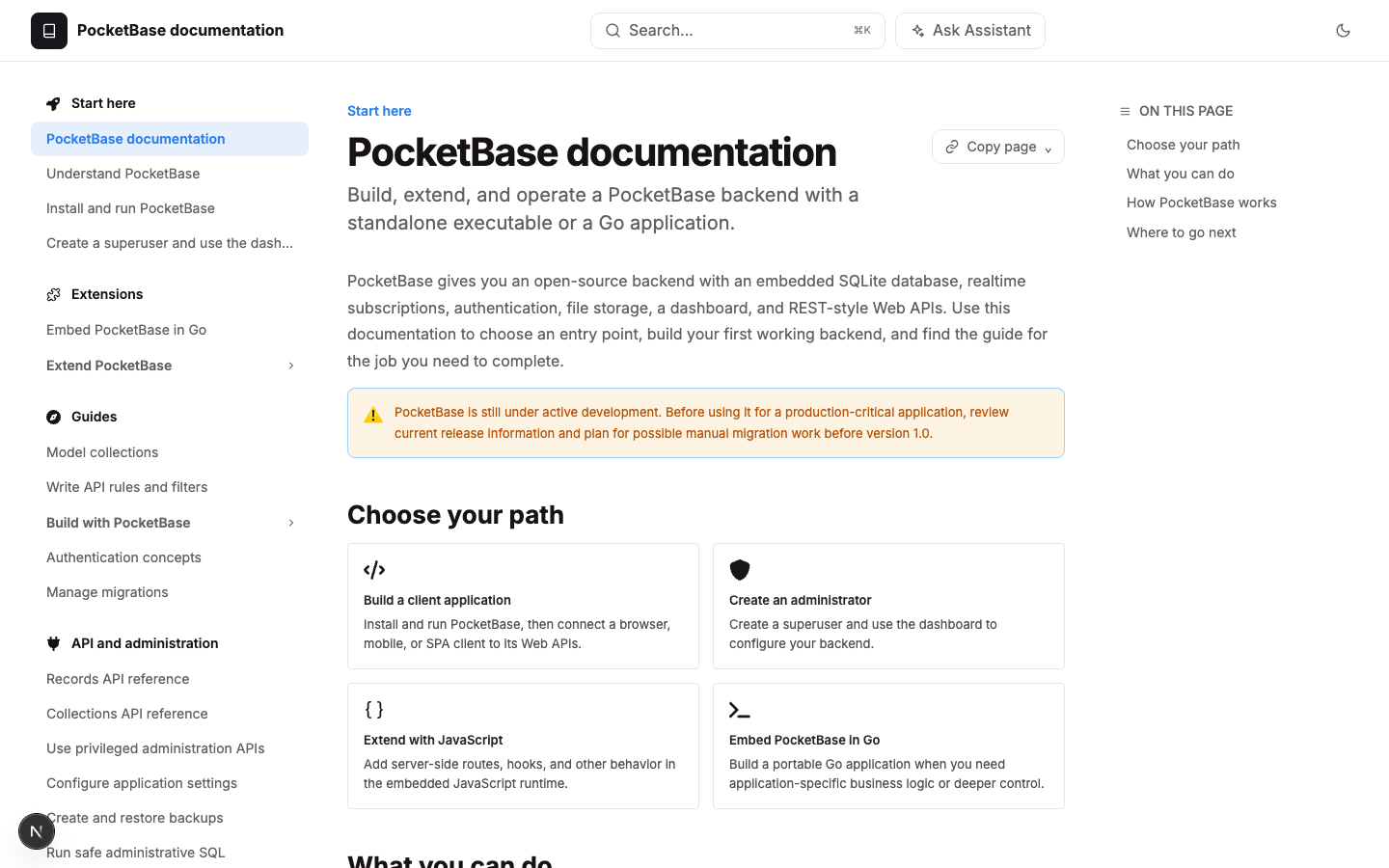
Open your published site from the project card's Docs site button to review the reader experience.
Site search
Readers search from the Search box in the top bar. The dialog asks for at least two characters before it runs a search.
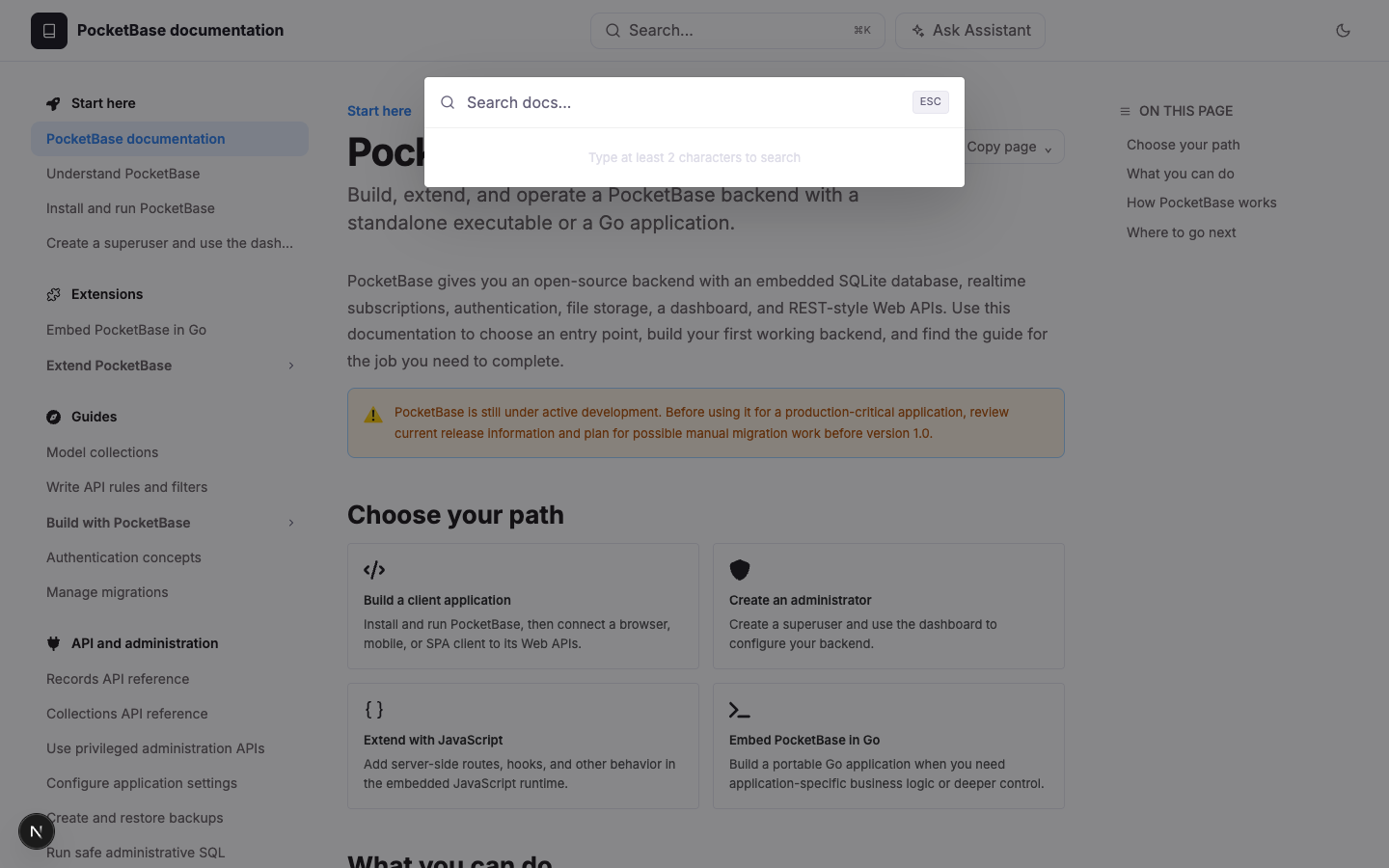
Search is full-text across the pages of the current language. It matches page titles and page content, and it returns up to 10 results. Each result shows the page title, its space, and a snippet with the matching words highlighted.
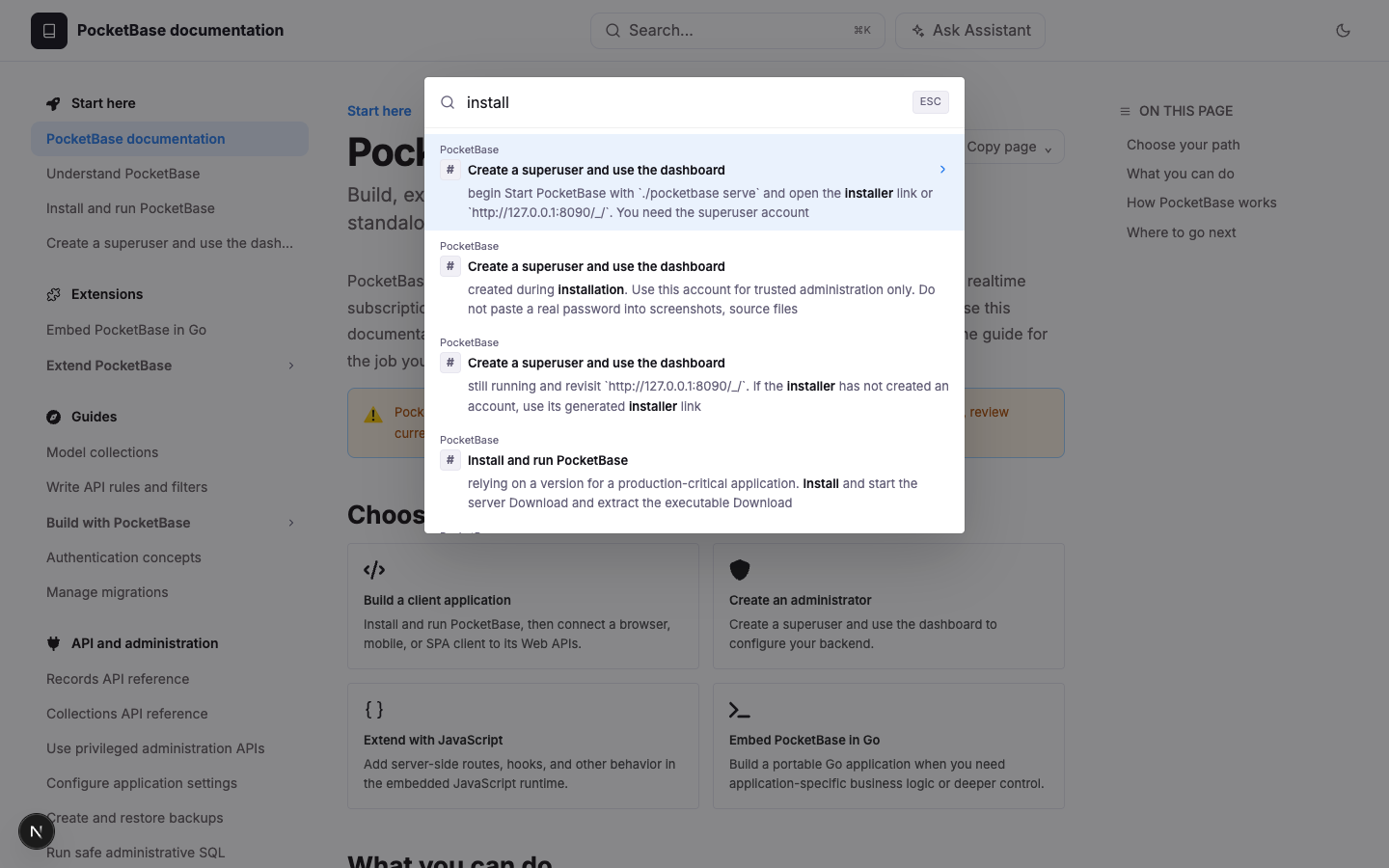
Search respects reader access. On a private site, search works only for readers who can already open the site; other visitors get Search access denied. See Make a site private. Searches that return no results feed Docs Health, so you can find content readers expect but cannot find. See Monitor quality with Docs Health.
Sidebar and page navigation
The sidebar reproduces the navigation you built for the space: groups expand and collapse, labels separate sections, and the current page is highlighted. The parent groups of the current page expand automatically. When Prev/next navigation is on, each article ends with previous and next article links in navigation order.
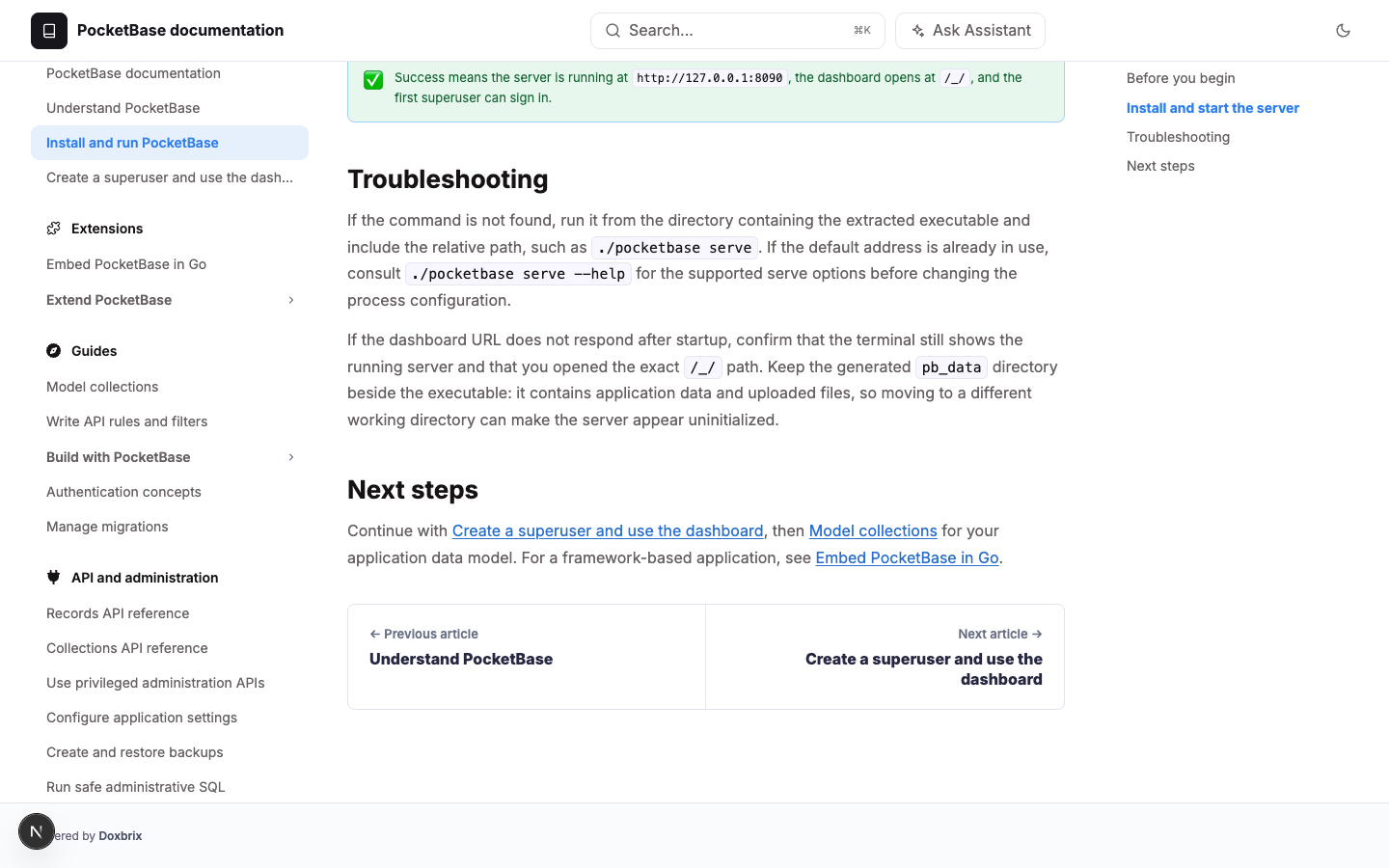
To change the order and grouping readers see, edit the navigation. See Organize spaces, groups and navigation.
Language and version switchers
When a project has several enabled languages, readers pick one from the language selector, which shows each language's name and flag. Switching language keeps the reader on the same page in the new language when a matching page exists; otherwise, it opens the home page of that language. The switch also keeps the documentation version the reader is viewing. The default language has no language prefix in the URL.
When a project publishes several documentation versions, readers switch between them in the same way. See Version your product documentation.
Support button
The support button uses the label and URL from Support CTA. When the URL is set, selecting the button opens that destination. For in-product support handoff from the assistant, see Set up the Ask AI assistant and Offer reader support and connect a helpdesk.
Verify
- Open the published site from the project card's Docs site button.
- Confirm that your top navigation links appear in the order you set, and that each link opens the right destination.
- Open an article and confirm that the previous and next links appear at the end, if you turned them on.
- Select the support button and confirm that it opens your Support CTA URL.
- Type a word from one of your pages into Search and confirm that the page appears in the results.