Offer reader support and connect a helpdesk
Turn on Support handoff, connect Zendesk or another helpdesk, and understand the Contact support form and My tickets that readers use.
Connect your helpdesk to a project so readers can open a support ticket when the documentation does not answer their question. Tickets from the Contact support form and from the Ask AI assistant go to the helpdesk you connect, and readers follow them under My tickets.
Use this guide when you want your docs site to hand readers to a human instead of leaving them at a dead end.
Before you begin
- You need a role that can edit project settings, such as a workspace owner or admin, or a project owner or admin. See Roles and permissions.
- Your workspace plan must include helpdesk integrations:
| Plan | Helpdesk integrations |
|---|---|
| Free | None |
| Starter | None |
| Pro | One |
| Business | Unlimited |
See Plans and limits reference.
- Have the connection details for your helpdesk ready. For Zendesk, you need your Zendesk subdomain, an agent email, and an API token from Admin Center → Apps and integrations → APIs → Zendesk API.
Supported helpdesks
You can connect any of these 14 systems: Zendesk, Freshdesk, Freshservice, Zoho Desk, Intercom, Jira Service Management, Salesforce Service Cloud, HubSpot Service Hub, Help Scout, ServiceNow, Front, Slack, Webhook, and Email to ticket.
A project sends new tickets to one Active destination at a time. You can keep other connections configured under Other connections and switch which one is active.
Connect a helpdesk
On the dashboard, select the gear icon on your project card to open project settings, then select Support & Ticketing in the left navigation.
The section shows the Support handoff switch, the Active destination, Other connections, and Known issues.
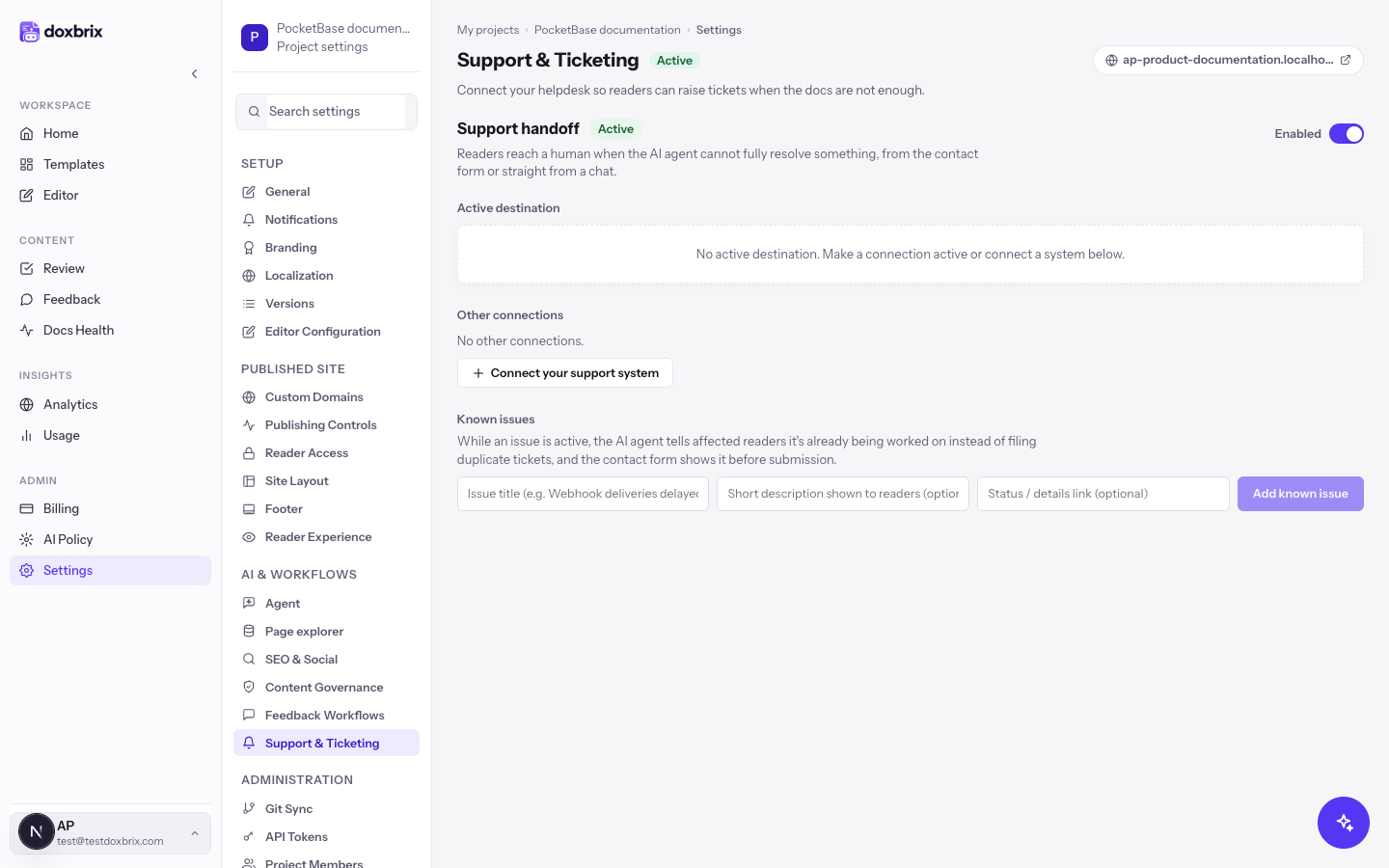
If the switch shows Disabled, select it so it shows Enabled. The status badge changes to Active.
While support handoff is disabled, the Contact support page and buttons are hidden and the assistant cannot create tickets. Existing connections stay configured.
Select Connect your support system. If the project already has a connection, the button reads Connect another system.
The Connect a system dialog lists every supported helpdesk. Use Search systems to filter the list.
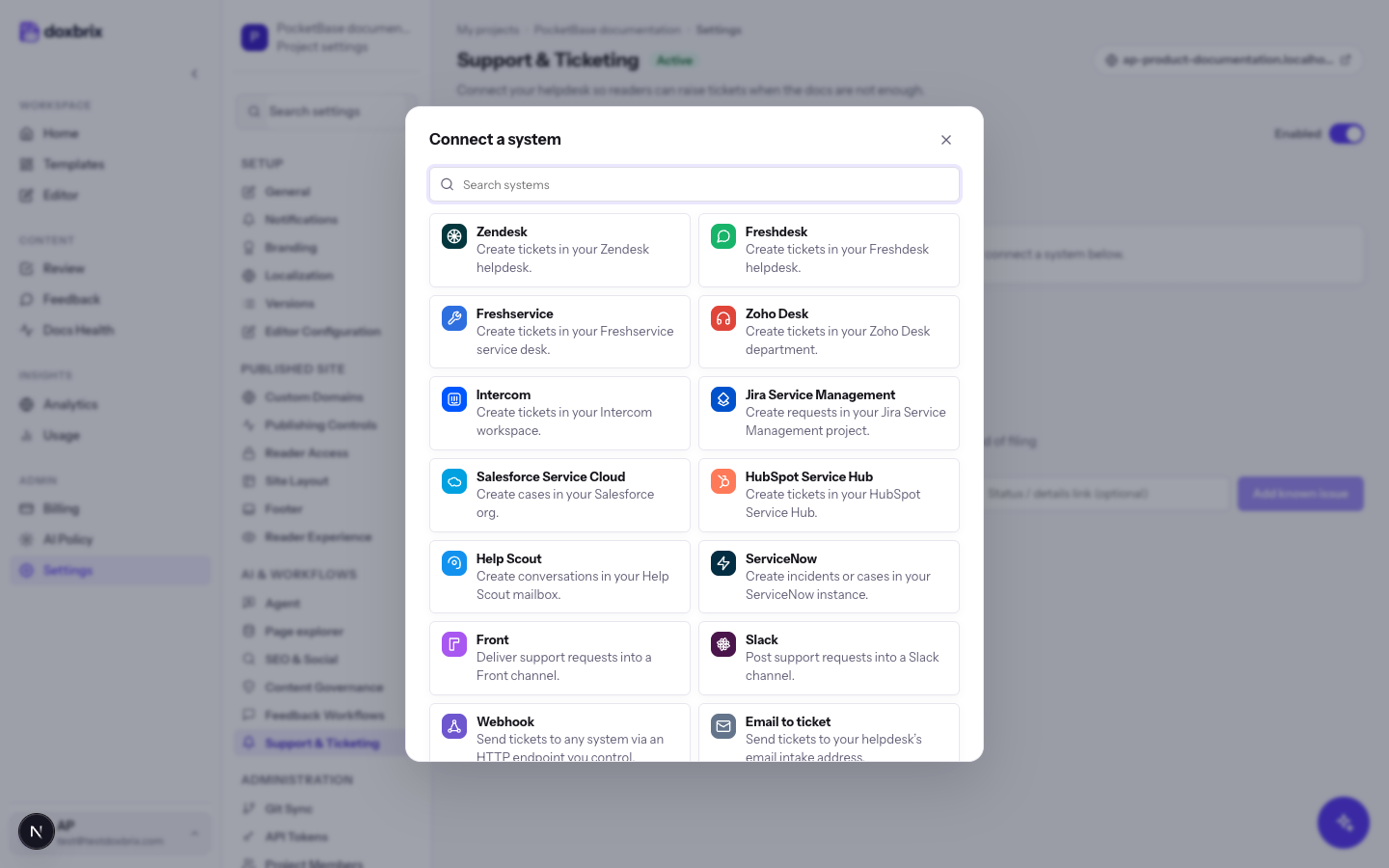
Select your helpdesk, for example Zendesk. The dialog changes to Connect Zendesk and shows the fields that system needs.
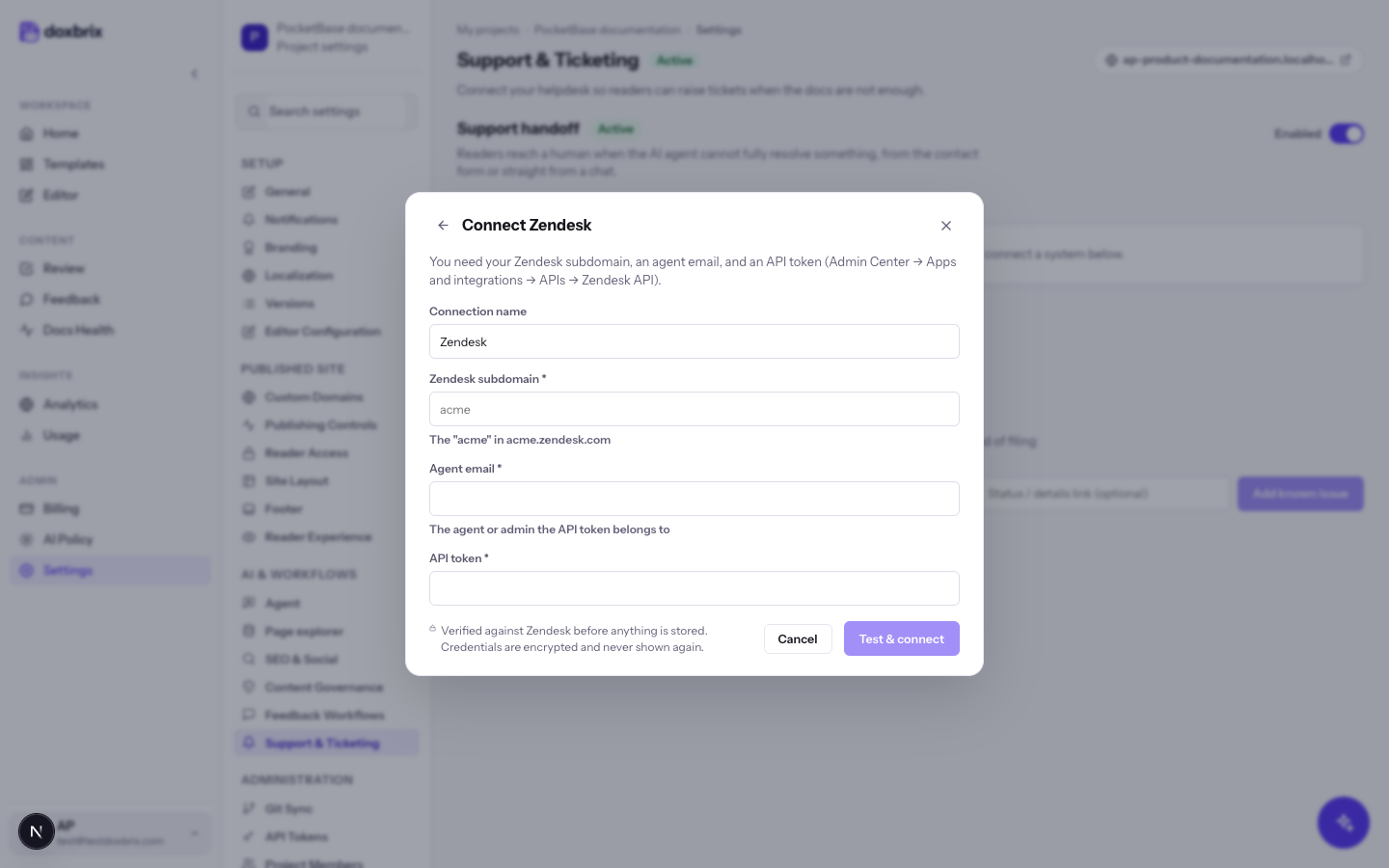
Fill in the fields. For Zendesk:
- Connection name: a label for this connection, such as
Zendesk. - Zendesk subdomain: the
acmeinacme.zendesk.com. - Agent email: the agent or admin the API token belongs to, such as
support-admin@example.com. - API token: the token you created in Zendesk.
Test & connect stays disabled until every required field has a value.
Select Test & connect. Doxbrix checks the credentials with your helpdesk before it saves the connection. When the test succeeds, the connection appears under Active destination.
Under Ticket categories, add the categories readers can choose, such as Feature request or Billing. The assistant also triages conversations into these categories.
If your helpdesk supports routing, you can set a group per category. Otherwise, Doxbrix adds the category to the ticket as a tag.
Under Known issues, add any problem your team is already working on, with a title such as Webhook deliveries delayed, an optional short description, and an optional status link. Readers see active known issues before they file a duplicate report.
What readers see
Readers open Contact support from your reader site. The page has two tabs: Submit a request and My tickets.
Submit a request
The Tell us about your issue form asks for:
| Field | Required | Notes |
|---|---|---|
| Name | Yes | Up to 120 characters. |
| Yes | Where the support team follows up. | |
| Subject | Yes | 3 to 200 characters. |
| Priority | Yes | Low, Normal, High, or Urgent. Defaults to Normal. |
| Category | When you define categories | Uses your ticket categories. |
| Workspace URL (optional) | No | A link that helps your team find the reader's account. |
| Attach files (optional) | No | Up to 4 files of 3.5 MB each: PNG, JPG, GIF, WebP, PDF, TXT, LOG, JSON, or HAR. |
| What happened? | Yes | The problem, what the reader expected, and any error messages. |
As the reader types a subject, the form suggests existing articles under "These articles may already answer your question:" and flags similar tickets the reader already opened. This helps readers solve the problem before they file a ticket.
To confirm the request, Doxbrix emails the reader a sign-in link and a 6-digit code. The reader opens the link or enters the code and selects Verify and submit. Readers who are already signed in select Submit request.
My tickets
My tickets lists every ticket for the reader's verified email, with Total, Open, Pending, and Resolved counts and filters for All tickets, open, pending, resolved, and closed tickets. Each ticket shows its helpdesk number, provider, and whether it came from a Form request or an AI handoff from the assistant.
When a ticket is resolved or closed, the reader can answer Did this resolve your issue? with Yes or No.
Verify
- Open your reader site's
/supportpage, for examplehttps://docs.example.com/support. - Confirm that the Submit a request form appears instead of a "not configured" message.
- Submit a test request with a test email address, and confirm that a new ticket appears in your helpdesk.