
Configure workspace settings
Set your workspace name, logo and regional defaults, choose defaults for new projects, and harden invitations, email domains and sessions.
Workspace settings control the identity of your Doxbrix workspace and the defaults every new project starts with. This guide walks you through the Workspace Profile, Workspace Defaults, Role Management and Security basics sections, and shows you how to save your changes.
A workspace is your organization's account in Doxbrix. It holds members, billing, single sign-on and all of your projects. Settings you change here apply across the workspace; each project has its own settings for its site. See Project settings reference.
Before you begin
- Role: You must be a workspace Owner or Admin to save workspace settings. Other roles cannot change them. See Roles and permissions.
- Plan: The sections in this guide are available on every plan.
- Starting point: You are signed in to the Doxbrix app.
Settings sections at a glance
The workspace settings sidebar groups its sections as follows:
| Group | Sections | Covered in |
|---|---|---|
| Workspace | Workspace Profile, Workspace Defaults | This guide |
| People & access | Members & Invitations, Role Management | Invite and manage members and this guide |
| Security | Security basics, Single Sign-On | This guide and Set up single sign-on |
| Integrations | Git accounts, API Tokens | Connect GitHub and GitLab accounts and Create and revoke access tokens |
Configure the workspace
In the sidebar, under Admin, select Settings. Workspace settings open at /settings/workspace on the Workspace Profile section.
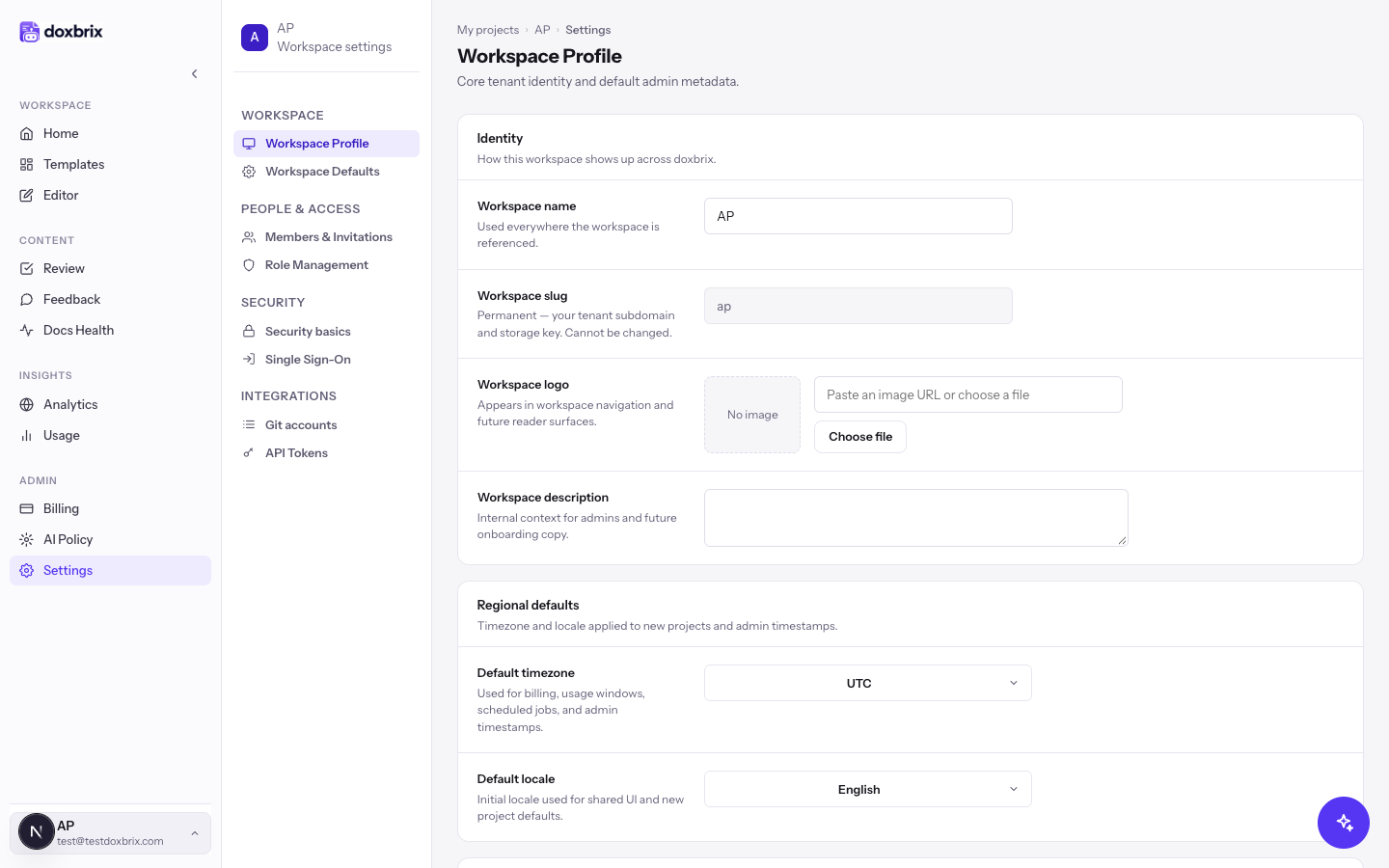
Under Identity, edit the fields your team sees across Doxbrix:
- Workspace name — used everywhere the workspace is referenced.
- Workspace logo — appears in workspace navigation.
- Workspace description — internal context for admins.
Workspace slug is shown but disabled. It is permanent because it is your tenant subdomain and storage key.
Under Regional defaults, choose a Default timezone (for example, America/New_York) and a Default locale. The timezone is used for billing, usage windows, scheduled jobs and admin timestamps.
Under Support economics, set Support contact (for example, support@example.com), Support hourly cost (1–1,000) and Average ticket minutes (1–480). Support savings analytics use these values to estimate the hours and cost that your docs save.
Select Workspace Defaults. These values are applied automatically whenever someone creates a project; existing projects keep their current settings.
- Project creation: Default project visibility (Public or Private) and Default locale.
- Branding defaults: Default brand color as a six-digit hex value such as
#111827, and Default font. - AI & review defaults: Default agent policy (Workspace default, Enabled with review or Disabled) and Default review policy (Review optional, Review required or Owner approval).
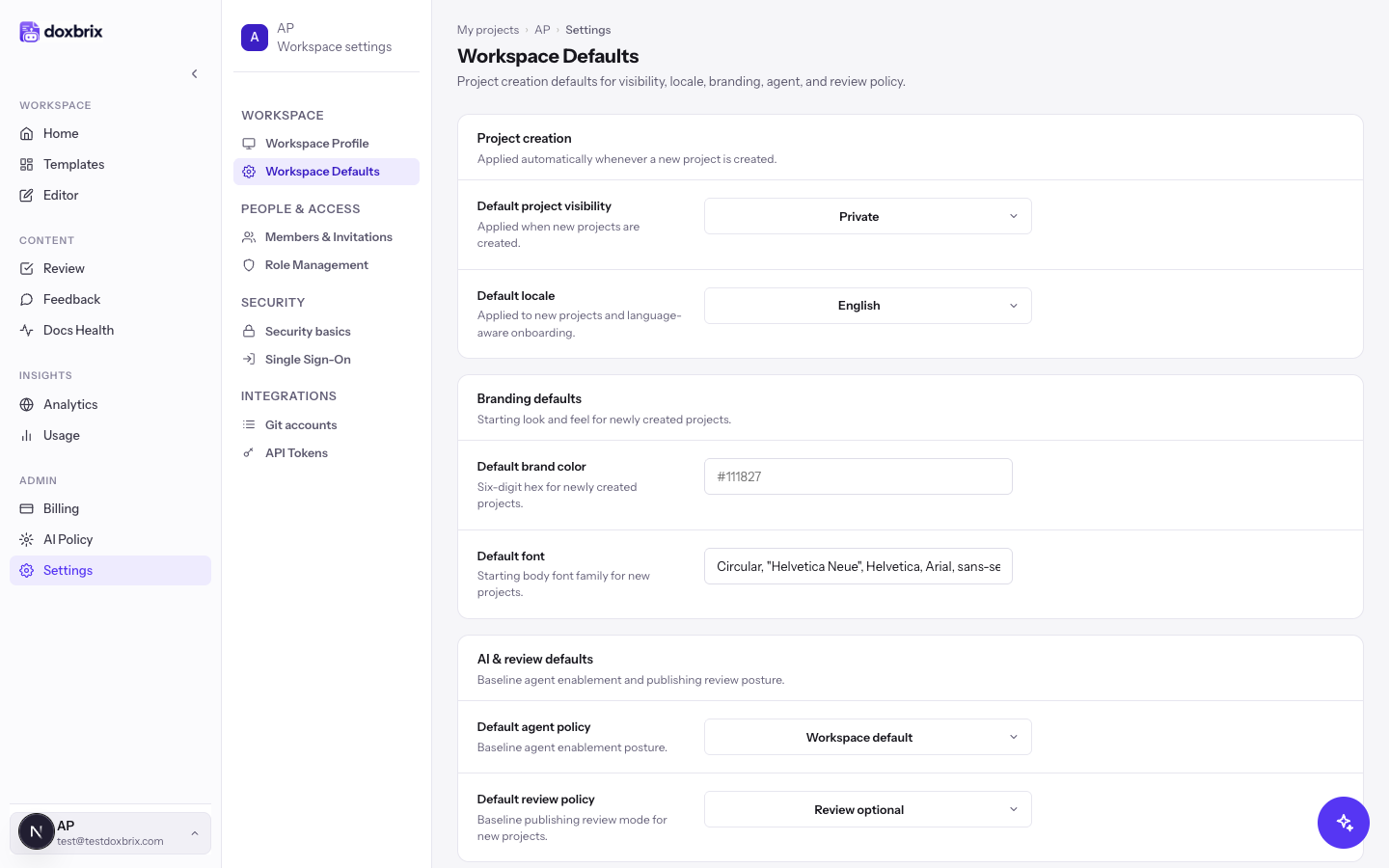
Choose Review required or Owner approval if every new project should route pages through approval before publishing. See Page lifecycle and approval policies.
Select Role Management. Role definitions summarizes what the Owner, Admin, Editor and Viewer roles can do. Recent role history lists the latest role changes, each with the member, the person who made the change and the time. Use it to audit who changed access.
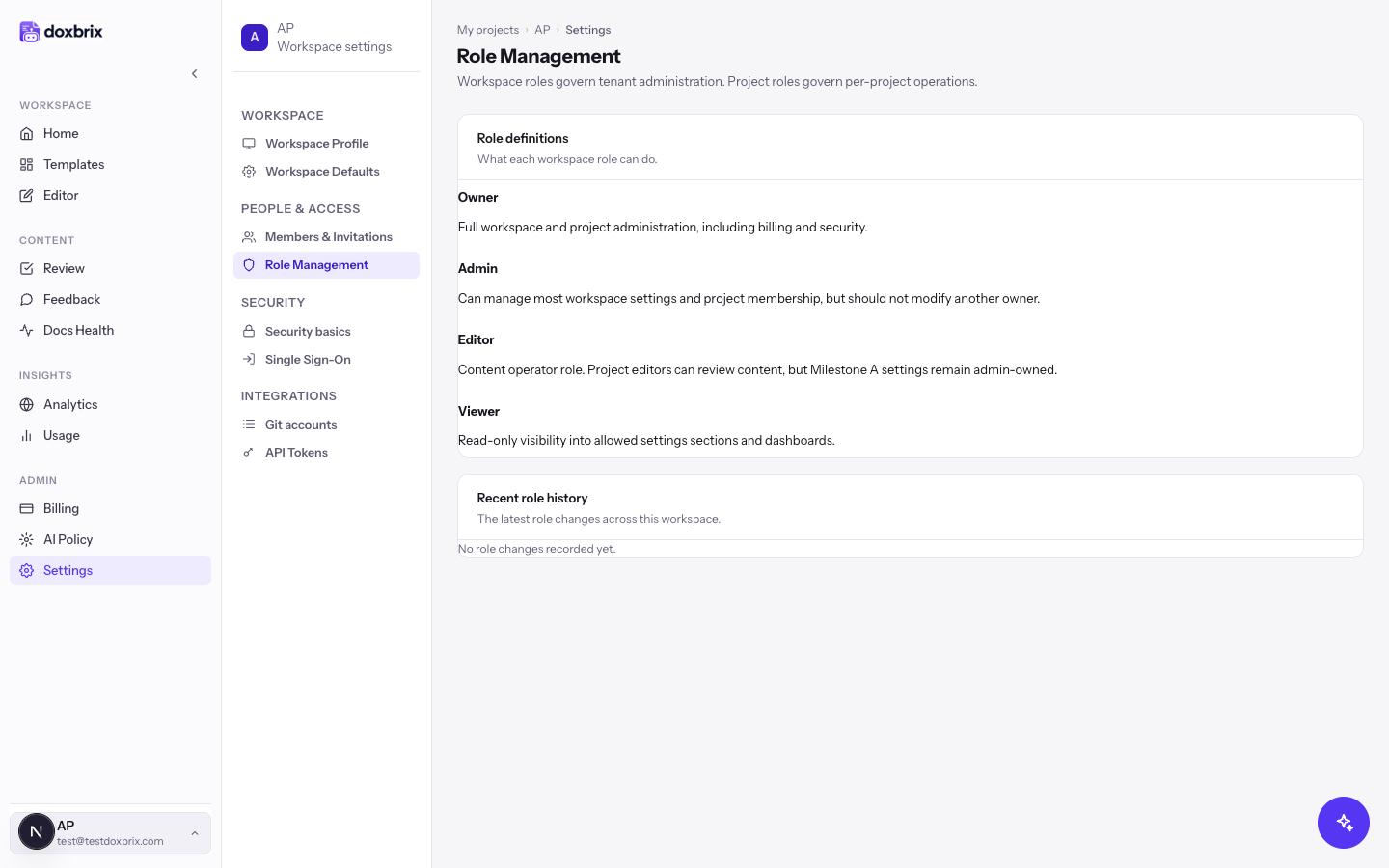
You change a member's role from Members & Invitations, not from this section. See Invite and manage members.
Select Security basics and set the controls that apply before single sign-on:
- Default invite restriction — who can invite new members: Workspace admins only (the default), Workspace owners only, or Admins and project owners. The note below the list explains the current choice.
- Usage warning threshold — a percentage from 1 to 100. When usage reaches it, Doxbrix shows a warning in billing and usage summaries.
- Allowed email domains — add domains such as
example.comto limit future invitations to those domains. With no domains listed, any address can be invited. - Password policy — shows the password rules that apply to your workspace.
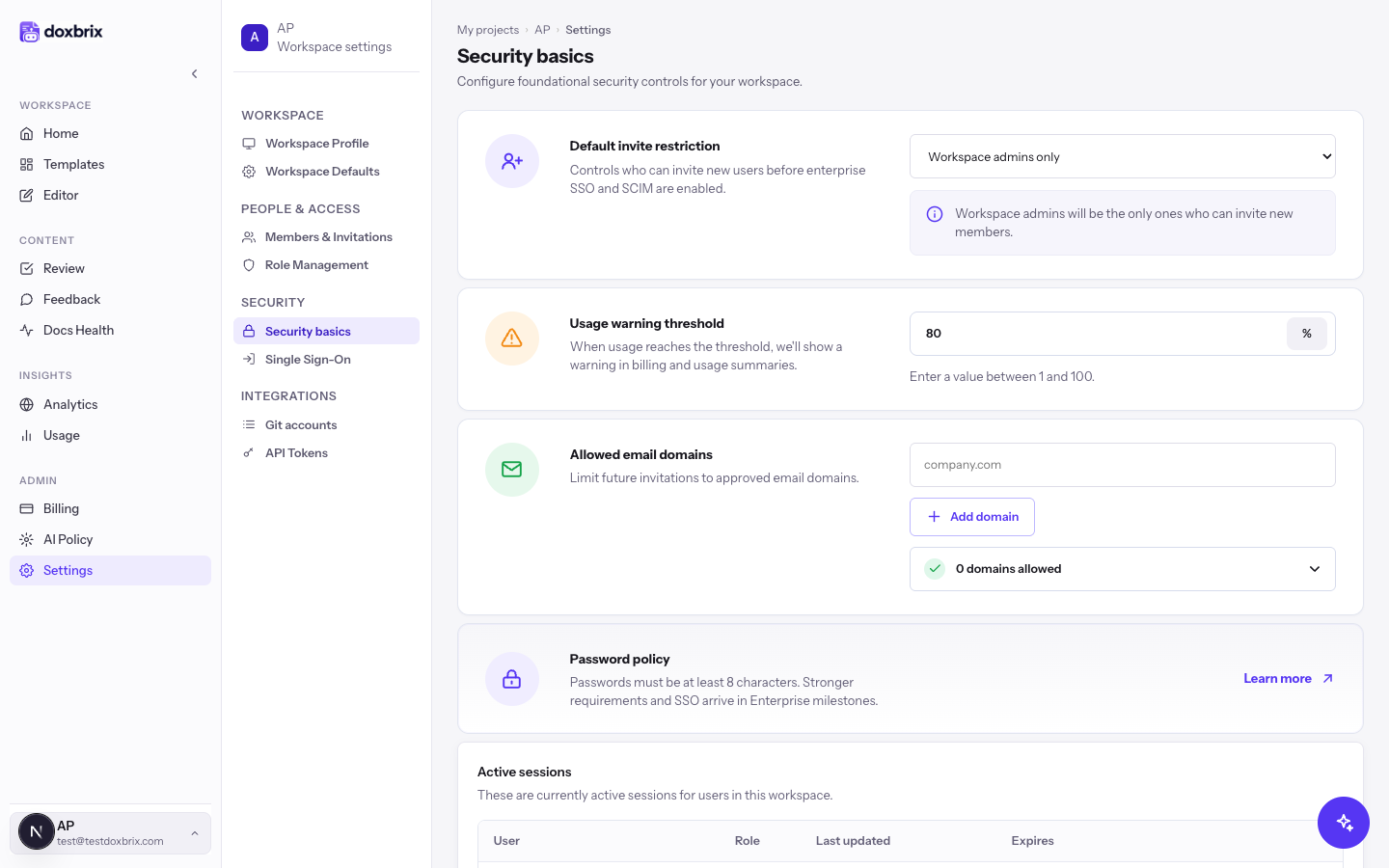
Under Active sessions, review the sessions of users in the workspace, with their Role, Last updated and Expires times. To sign a session out, select Revoke, then confirm with Revoke session.
When you edit a field, the footer shows Unsaved changes. Select Save changes to apply every edited section at once, or Cancel to discard your edits. After a successful save, the button briefly shows Saved.
Verify
- Reload
/settings/workspaceand confirm that the edited values persist. - Create a test project and confirm that it starts with your Workspace Defaults visibility, brand color and review policy. See Create a project.
- Check Role Management > Recent role history after a role change to confirm that it was recorded.