
Manage deployments, auto-deploy and rollback
Redeploy a connected site, read build logs, choose an auto-deploy mode, and roll back to an earlier deployment.
When Doxbrix hosts an existing docs-as-code site (a connected project), every build and publish of that site is a deployment. This guide shows you how to start a new deployment, read the build log when something fails, keep the site in sync with your repository automatically, and instantly roll back to an earlier deployment.
Use this guide after you have connected a site as described in Host an existing docs site. Native projects that you write in the Doxbrix editor do not have deployments; you publish their pages instead, as described in Publish and edit published pages.
Before you begin
- You need a connected project, created with Host existing docs with Doxbrix. The Deployments section appears only in the settings of connected projects.
- You need access to the project's settings.
- For Auto-deploy, the project must build from a connected GitHub or GitLab repository. Projects that deploy from an uploaded bundle or a local folder update only when you deploy again.
- For Instantly on push, you need permission to add a webhook to the repository, or an access token with webhook permission (GitHub: repository admin; GitLab:
apiscope).
How deployments work
Each deployment builds your site from its source, publishes the output, and indexes the pages so that the Ask AI assistant can answer from them. The deployment list labels how each deployment started:
| Trigger label | Started by |
|---|---|
| First deploy | The first build when you connected the site. |
| Manual | Someone selecting Deploy or Redeploy. |
| Push | A repository webhook after a push (Instantly on push mode). |
| Auto-check | The periodic branch check (Check periodically mode). |
| Upload | A new uploaded bundle or local folder. |
| Rollback | A rollback to an earlier deployment. |
A running deployment shows Building… and then Indexing…. A finished deployment is ready, and the deployment that the site currently serves carries a Current badge. A deployment that did not complete carries a Failed badge.
Steps
On the dashboard, find the card for your connected project and select its gear icon. The project settings open on General, with the sections grouped in a sidebar.
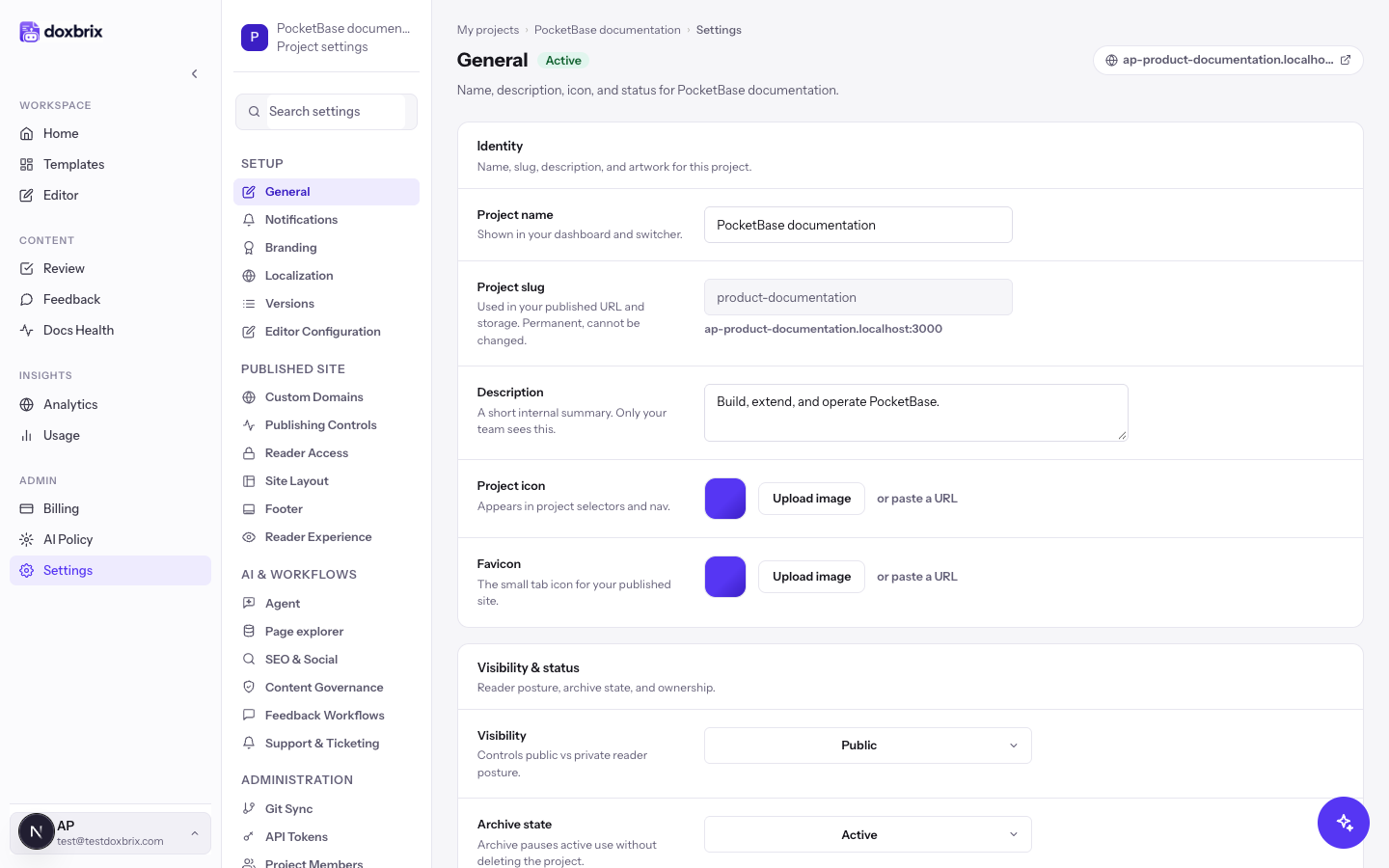
In the Setup group of the settings sidebar, select Deployments.
The Live deployment card at the top shows what readers see now: the commit message or trigger, the short commit SHA, when it was deployed, how many pages were indexed and, for Git projects, the repository and branch. Below it, the Deployments list shows every deployment with its trigger, author, start time, duration, and page count.
If the project has never deployed, the card reads Not deployed yet — run your first deployment.
When the project has more than one deployment, use the filters above the list to narrow it:
- All statuses: choose Ready, Failed, or Running.
- All triggers: choose one of the trigger labels present in the history, such as Push or Manual.
If nothing matches, the list reads No deployments match these filters.
On the deployment you want to inspect, select Log. The build output opens below the row. Select Log again to close it.
- A failed deployment also shows its error message under the row while the log is closed.
- If the deployment is still running, the log area reads This deployment is still running — the build log appears once the build step completes.
- If the build produced no output, it reads No log was captured for this deployment.
Use the log to find the failing command or missing file, fix it in your repository or bundle, and deploy again.
Start a new deployment with the action in the Live deployment card. The label depends on how the project gets its source:
| Source | Action |
|---|---|
| Git repository | Deploy for the first build, then Redeploy. |
| Local folder | Deploy from folder, then choose the folder that contains the site. |
| Uploaded bundle | Upload new bundle, then choose a .zip file. |
Doxbrix shows Deployment started. This usually takes a few minutes. and adds a Manual or Upload row to the list. While a deployment runs, the button reads Deploying… and you cannot start another one. If you try, Doxbrix reports A deployment is already in progress.
For a Git project, the Auto-deploy card keeps the site in sync with your repository. None of the modes give Doxbrix access to your repository. Select one option:
- Off: Deploy only when you select Redeploy.
- Check periodically: Doxbrix checks your branch about every 10 minutes and deploys when it changes. No setup is needed.
- Instantly on push: Your repository notifies Doxbrix through a webhook on every push.
The selection saves immediately.
If you selected Instantly on push, install the webhook in one of two ways:
- Let Doxbrix install it. Paste an access token with webhook permission into Access token (used once, not stored) and select Set up for me. Doxbrix uses the token for this one setup call and does not store it. On success, Doxbrix shows Webhook installed on your repository. Pushes now deploy instantly.
- Install it yourself. Select Or set it up manually. In your repository, open Settings → Webhooks → Add webhook, paste the Payload URL and Secret that Doxbrix shows, and choose push events. On GitHub, set the content type to JSON.
If Doxbrix already holds a credential for a private repository, it can install the webhook without a pasted token.
On a ready deployment that is not Current, select Rollback, read the note that appears, and then select Confirm. Select Cancel to keep the current deployment.
Rollback does not rebuild the site. Doxbrix switches the live site to the stored output of that deployment and clears the cached pages, so the change is immediate. Doxbrix shows Rolled back. The site is serving the selected deployment.
Verify
- The Live deployment card shows the commit or trigger you expect, with a recent Deployed time.
- In the Deployments list, the deployment you started or restored carries the Current badge.
- Open the published site from the address in the settings header and confirm that it shows your latest change or the restored version.
- For Instantly on push, the Auto-deploy card reads Webhook installed on your repository — every push deploys automatically. After your next push, a Push deployment appears in the list.
Troubleshooting
For domain, reader sign-in, and other site problems, see Troubleshoot sites, domains and reader access.