Manage notifications
Read in-app notifications from the editor bell and choose which project events send email, such as review requests, approvals, support replies and the weekly do
Doxbrix tells you about activity in two ways: in-app notifications in the editor, and email updates that each project can send. This guide shows you how to read and clear in-app notifications and how to choose which project events send email.
How notifications work
| Channel | Where you see it | Who controls it |
|---|---|---|
| In-app notifications | The Notifications bell in the editor top bar | Always on for your account |
| Project email updates | Your inbox | The Notifications section of each project's settings |
Email preferences are set per project. A toggle in the PocketBase documentation project, for example, does not affect the Memos Guide project. In a new project, every email toggle starts off, so no project emails are sent until someone turns them on.
Before you begin
- Sign in to Doxbrix. Any member can read their own in-app notifications.
- To change a project's email updates, you need permission to edit that project's settings. See Roles and permissions.
- The project must already exist. This guide uses the sample project PocketBase documentation.
Read in-app notifications
Open a page in the editor and select Notifications, the bell icon in the editor top bar. When you have unread notifications, the bell shows a badge with the unread count, up to 9+.
The panel lists your 20 most recent notifications, newest first. Each entry shows a title, an optional short message and how long ago it happened, such as 5m ago. Unread entries appear in bold. When there is nothing to show, the panel reads You're all caught up.
The bell appears in the editor. The dashboard does not show it.
Select an entry. Doxbrix marks it as read, lowers the unread count and, if the notification links to something such as a page, opens that location.
To clear the badge without opening each entry, select Mark all read at the top of the panel. This link appears only while you have unread notifications.
The bell checks for new notifications every 30 seconds and again each time you open it, so you do not need to reload the editor.
Choose project email updates
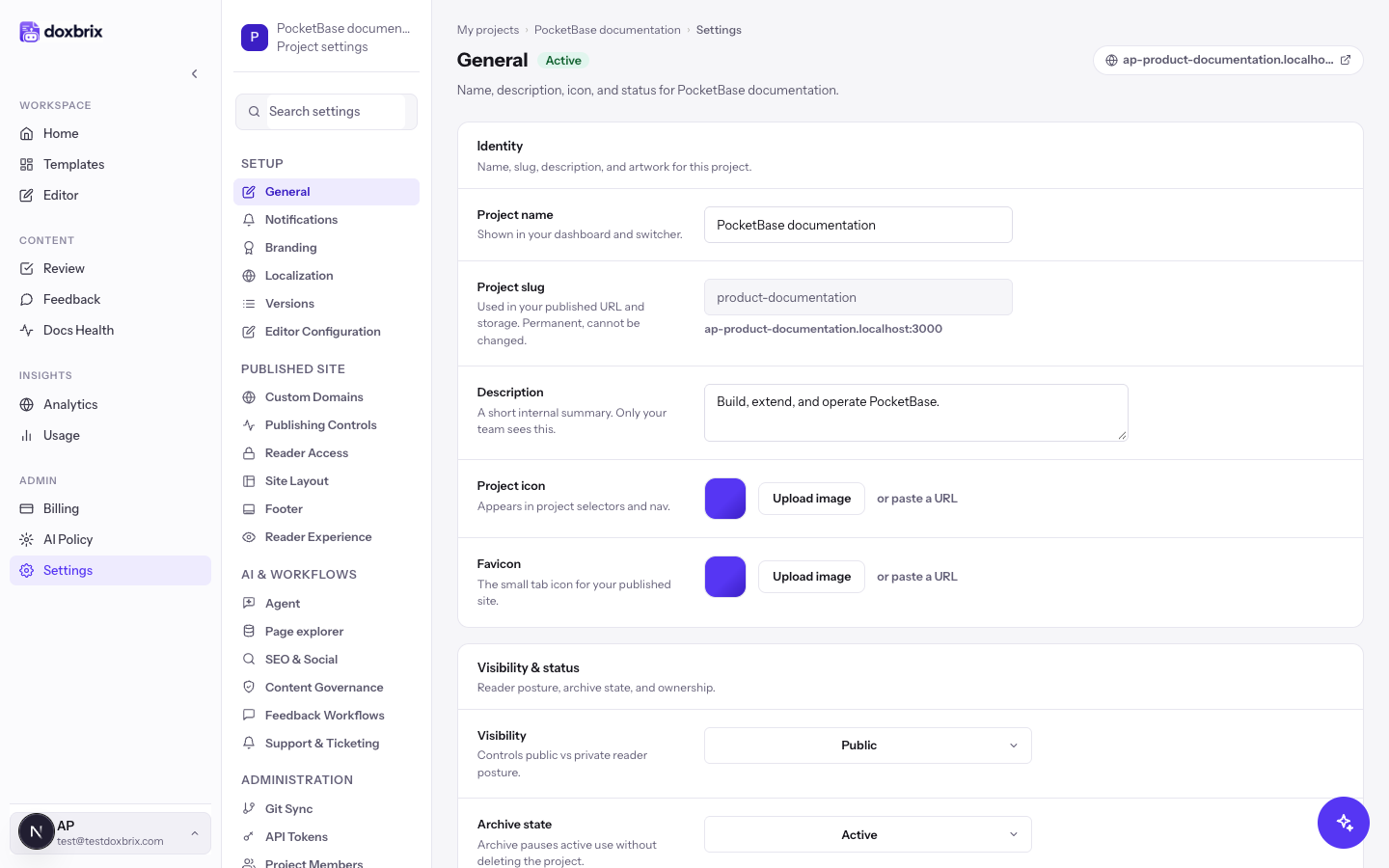
On the dashboard, find the project card, such as PocketBase documentation, and select its gear icon. The project settings open on General. In the settings navigation, Notifications is listed under Setup.
Select Notifications. The section description reads Choose which email updates this project sends you. The toggles are grouped under Content workflow, Support and Digests.
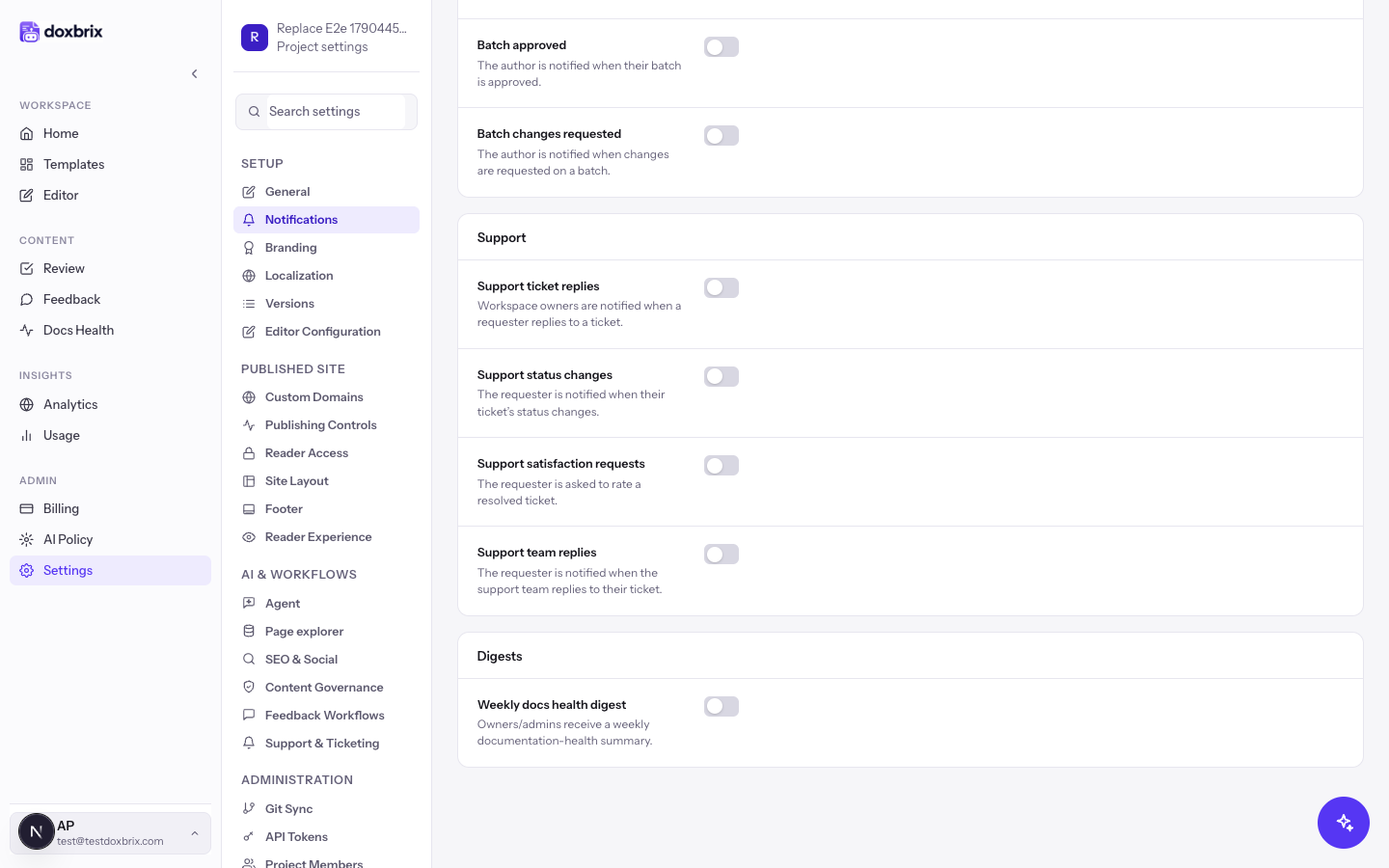
Switch on each event that should send email. The table in Email update reference lists every toggle and its recipient.
For a team that uses review and approval, a common starting set is Page submitted for review, Page approved & published, Page changes requested and Comment mentions.
Select Save changes in the settings footer. Doxbrix saves the toggles with the rest of the project settings. To abandon your edits, select Cancel.
Email update reference
| Group | Toggle | Who is notified |
|---|---|---|
| Content workflow | Page submitted for review | A reviewer, when a page is submitted for review |
| Content workflow | Page approved & published | The author, when their page is approved and published |
| Content workflow | Page changes requested | The author, when a reviewer requests changes |
| Content workflow | Page published | The team, when a new page goes live |
| Content workflow | Page unpublished | The team, when a page is unpublished |
| Content workflow | Comment mentions | A member, when they are @mentioned in a comment |
| Content workflow | Batch submitted for review | A reviewer, when a batch of pages is submitted |
| Content workflow | Batch approved | The author, when their batch is approved |
| Content workflow | Batch changes requested | The author, when changes are requested on a batch |
| Support | Support ticket replies | Workspace owners, when a requester replies to a ticket |
| Support | Support status changes | The requester, when their ticket's status changes |
| Support | Support satisfaction requests | The requester, who is asked to rate a resolved ticket |
| Support | Support team replies | The requester, when the support team replies to their ticket |
| Digests | Weekly docs health digest | Owners and admins, who receive a weekly documentation-health summary |
Support toggles apply when the project offers reader support and ticketing. The digest summarizes the issues described in Docs Health.
Verify
- Reopen Notifications in the project settings. The toggles you saved remain on.
- Trigger an event you enabled, for example by submitting a draft for review, and confirm that the recipient receives the email.
- Open the editor bell after an in-app event. The badge shows the new unread count.